SPF Sendgrid Configuration Guide: Ensure Your Emails Pass Authentication

Quick Answer
To authenticate email sent via SendGrid, add 'include:sendgrid.net' to your SPF record, enable Sender Authentication in the SendGrid dashboard, and publish the three CNAME records SendGrid provides (two for DKIM selectors s1._domainkey and s2._domainkey, one for the return-path em.example.com). The sendgrid.net include consumes roughly 5 of your 10 allowed DNS lookups, so it must be combined carefully with other senders.
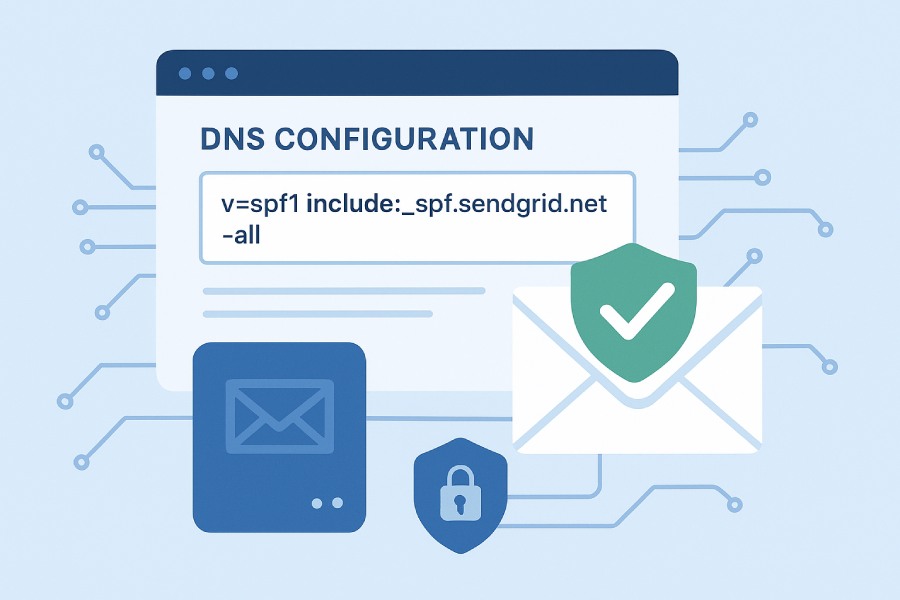
To authenticate email sent via SendGrid, add include:sendgrid.net to your SPF record, enable Sender Authentication in the SendGrid dashboard, and publish the three CNAME records SendGrid provides. Two of the CNAMEs point at SendGrid’s DKIM signing keys (s1._domainkey and s2._domainkey); the third sets up a custom return-path subdomain (em.example.com) so bounce handling goes through your domain instead of sendgrid.net.
SendGrid’s SPF include (include:sendgrid.net) chains internally to multiple regional sending infrastructure records and in practice consumes approximately 5 of the 10 DNS lookups allowed by RFC 7208, which is the single most common way enterprise SPF records exceed the limit when SendGrid is added alongside existing senders.
For setup instructions covering SendGrid and dozens of other platforms, see our SPF Record Setup Guide.
A SendGrid-only SPF record looks like this:
example.com. IN TXT "v=spf1 include:sendgrid.net -all"The sendgrid.net include chains internally to multiple nested includes for SendGrid’s regional sending infrastructure, and in practice consumes 5 of your 10 RFC 7208 DNS-lookup budget. This leaves only 5 lookups for any other senders (Google Workspace, Microsoft 365, Mailchimp), which is the single most common way enterprise SPF records exceed the 10-lookup cap when SendGrid is added alongside existing email infrastructure.
This guide covers the exact SendGrid domain authentication flow, how to configure the CNAMEs at your DNS provider, how to combine SendGrid with other senders without exceeding the 10-lookup limit (hint: flatten or offload one of the other includes), and how to verify authentication is working using SendGrid’s built-in sender verification report.
What Is SendGrid and Its Email Sending Infrastructure?
SendGrid, a Twilio company, is a cloud-based Email Service Provider (ESP) that specializes in transactional and marketing email delivery. Widely adopted for its scalable infrastructure and reliable email sending capabilities, SendGrid enables businesses to automate and optimize their email operations. Its infrastructure leverages dedicated IP addresses, automated security setups like DKIM and SPF record management, and provides comprehensive sender authentication tools that help maintain a trusted sending domain - all crucial for improving your email sending reputation.
SendGrid’s platform supports domain authentication, which authenticates your email sender domain through mechanisms like SPF and DKIM records. This authentication ensures that emails sent through SendGrid’s SMTP servers are aligned with your domain’s policies, increasing the likelihood that inbound mail servers classify your messages as legitimate rather than spam or phishing attempts. Furthermore, SendGrid Automates Security protocols to simplify domain authentication, reducing manual DNS record maintenance and enhancing email security.
The infrastructure also supports subdomain delegation, enabling you to use a subdomain (e.g., em123.yourdomain.com) specifically for email sending. This practice isolates email operations from the primary domain and streamlines SPF record creation, DKIM selector management, and Return-Path domain configuration, which collectively boost email deliverability and minimize risks associated with phishing or spoofing on your main domain.
How SPF Works with SendGrid to Improve Email Deliverability
Integrating SPF with SendGrid’s email sending infrastructure involves authorizing SendGrid’s servers as legitimate senders in your SPF record. Since SendGrid sends emails on your behalf, your DNS must explicitly delegate permission via the Sender Policy Framework. This delegation is commonly executed by including SendGrid’s SPF mechanism (e.g., “include:sendgrid.net”) within your domain’s SPF record. This instructs recipient email servers to accept emails dispatched through SendGrid’s IP addresses as authenticated messages. If you’re starting fresh, learn how to set up an SPF record first.

SPF validation occurs when the recipient server performs DNS lookups for your domain’s SPF record upon receiving an email. The server checks if the IP address responsible for sending corresponds to the authorized list in your SPF record. If the check passes, the email enjoys higher trust, resulting in better inbox placement and fewer bounce messages caused by failed sender authentication.
In SendGrid’s domain authentication process, DKIM records complement SPF by cryptographically signing outgoing messages, creating a double layer of email sender authentication. The Return-Path domain, often configured as a subdomain like em123.yourdomain.com, is used for managing bounce messages and feedback loops. Proper alignment of the Return-Path with SPF and DKIM ensures consistency in email headers and improves sender reputation.
Leveraging SendGrid’s Automated Security features means that once you configure your SPF record appropriately, ongoing operations such as selector rotation for DKIM, periodic TXT record rotation, and security checks are efficiently managed, reducing the risk of misconfiguration and maintaining high standards of email security protocols.
Identifying Your Domain’s Current SPF Record
Before modifying or creating an SPF record for use with SendGrid, it’s vital to audit your domain’s existing DNS records to understand current configurations and prevent conflicts. You can perform an SPF record inspection using command line tools such as the Unix `dig txt` command or Windows command prompt utilities. For instance:
dig txt yourdomain.comThis command fetches all TXT records, including SPF-related entries, revealing whether an SPF record already exists and what sending sources are authorized.
Analyzing the SPF record helps identify if your primary domain or any subdomains have existing SPF records that require modification or subdomain delegation for SendGrid. Some domains may have SPF limitations due to excessive DNS lookups or overlapping email sender domains, which must be addressed to ensure SPF validation remains effective.
Alternatively, several online SPF validator tools and SendGrid support resources, like SendGrid Docs, offer SPF record checking and troubleshooting services to assist with proper SPF record management.
Preparing Your Domain for SPF Configuration with SendGrid
Once you’ve identified your current SPF setup, preparing your domain involves creating or updating the SPF record to incorporate SendGrid’s authorized sending IPs using proper syntax and alignment principles.
Creating or Modifying Your SPF Record
Most domain owners authorize SendGrid by including its SPF mechanism inside the existing SPF record in the form of:
v=spf1 include:sendgrid.net ~all-
`v=spf1` indicates the SPF record version.
-
`include:sendgrid.net` delegates permission to SendGrid’s sending infrastructure.
-
`~all` (soft fail) signals that mail from unauthorized servers should be accepted but marked as suspicious.
If your domain already has an SPF record, append the `include:sendgrid.net` directive to avoid overwriting foundational authentication practices. If no SPF record exists, you should create one from scratch. An SPF record generator makes building one from scratch simple.
Utilizing Subdomain Delegation for Enhanced Security
To isolate email traffic and establish distinct authentication boundaries, consider using subdomain creation and subdomain delegation strategies. For example, configuring a subdomain such as `em123.yourdomain.com` allows you to point DNS records, including CNAME and TXT (for DKIM), uniquely for SendGrid, separating it from the primary domain’s email streams.

This segregation helps with Return-Path domain alignment and bounce management. Registers like `em123.sendgrid.com` often serve as CNAME targets in your DNS provider’s configuration to link your subdomain with SendGrid’s sending system seamlessly.
Coordinating DKIM and Return-Path Domain Setup
Alongside SPF, setting up DKIM records with selector rotation enhances email sender authentication by cryptographically signing every message. SendGrid provides unique DKIM selectors and corresponding TXT records to add to DNS. You can also generate a DKIM record if you manage keys yourself.
The Return-Path domain, which handles bounce messages, must be configured to reflect your authenticated sending domain to maintain consistent email header configuration and avoid deliverability pitfalls. Proper Return-Path setup aligns SPF and DKIM results, signaling trusted email communication to receiving servers.
Working with Your DNS Provider
Because SPF record creation and management occur via your DNS provider’s control panel, you should be familiar with where TXT, CNAME, and MX records are managed. Implementing changes requires careful coordination to avoid DNS lookups exceeding SPF limits.
DNS providers typically offer user-friendly interfaces for TXT record entry, with some supporting automated security setups or API integrations to facilitate periodic record rotation or dynamic record updates.
How Do You Verify and Validation?
After updating DNS records, confirm proper SPF record propagation and effectiveness by conducting SPF validation with command line tools or online services. Additionally, utilize SendGrid’s support resources and monitoring dashboards to verify domain authentication status, track email sending reputation, and ensure smooth email deliverability.
By thoroughly understanding SPF and how it interfaces with SendGrid’s infrastructure, proactively auditing existing DNS configurations, and carefully preparing your domain through proper SPF record creation, DKIM setup, and Return-Path alignment, you establish a trusted sending domain. This strategy fosters secure outbound communications, protects your digital footprint, mitigates phishing risks, and aligns with email authentication standards essential for maintaining a strong email deliverability record.
Step-by-Step Guide to Adding SendGrid to Your SPF Record
Integrating SendGrid into your SPF record is essential for domain-based email authentication and protecting your email sending domain from spoofing and phishing attacks. This process begins with understanding your current DNS setup and modifying the TXT records that define your Sender Policy Framework settings.
1. Identify Your Domain’s Existing SPF Record
Use DNS lookup tools such as the `dig txt` command in a Unix terminal or in Windows command prompt to query the existing SPF record for your email domain (e.g., `yourdomain.com`). This TXT record typically starts with `v=spf1` and lists authorized mail servers.
2. Determine SendGrid’s SPF Mechanism
SendGrid recommends including `include:sendgrid.net` in your SPF record to authorize their email servers as legitimate senders. This directive is essential for Automating Security and ensuring SendGrid’s IP addresses are trusted in your digital footprint.

3. Modify SPF Record to Include SendGrid
Access your DNS provider’s management console and locate the TXT records for your primary domain or subdomain used for email sending.
-
If an SPF record exists, add `include:sendgrid.net` before the `~all` or `-all` mechanism.
-
If no SPF record is present, create a TXT record with the value:
`v=spf1 include:sendgrid.net ~all`4. Handle Subdomain Delegation if Applicable
For organizations employing subdomain creation (e.g., `em123.yourdomain.com`), ensure appropriate SPF records are added for the subdomain, possibly requiring subdomain SPF record creation and delegation. This enhances email domain alignment when SendGrid uses a subdomain for email sending.
5. Configure Return-Path Domain for Alignment
SendGrid allows configuring a custom Return-Path domain to align with your email sender domain, which boosts email deliverability and prevents bounce messages being misclassified. This often involves creating a CNAME record in your DNS pointing to SendGrid’s hosted Return-Path domain (e.g., `em123.sendgrid.com`).
6. Save and Propagate DNS Changes
DNS propagation can take time, typically from minutes to up to 48 hours. Utilize DNS lookup tools periodically to confirm your updated SPF record is live.
For further assistance, consult SendGrid Docs which provide tailored guidance on SPF record integration as part of their Automated Security recommendations.
How Do You Verify Your SPF Record for Correctness?
After correctly setting the SPF record to include SendGrid, verifying the record’s accuracy is critical to ensure email authentication functions as intended.
Using Command Line Tools
Unix Terminal / Windows Command Prompt
Execute the `dig txt yourdomain.com` or `nslookup -type=txt yourdomain.com` commands to retrieve your domain’s SPF TXT records. Inspect the output for the presence of `include:sendgrid.net` and ensure the syntax matches SPF standards.
Online SPF Validation Tools
Use SPF record checkers such as the SPF Record Checker on SendGrid support or third-party services like MXToolbox. These automated tools parse your SPF records and report syntax errors, DNS lookup counts, and potential conflicts.
Review SPF Alignment
Ensure the domain in your Return-Path matches your email sending domain for proper SPF alignment. Misalignment can cause DMARC failures and affect your email deliverability negatively.
Periodic SPF Record Inspection
Email security maintenance includes periodic SPF record review and possible TXT record rotation to accommodate automated security setups like SendGrid Automated Security, especially when rotating IP addresses or adding new sending domains.
How Do You Verify Email Authentication with SPF After SendGrid Setup?
After SPF record verification, testing actual email flow is essential to confirm that Sender Policy Framework validations are operational and that emails sent through SendGrid pass authentication checks.
-
Send Test Emails to Gmail, Outlook, and Other Major Providers: These inbox providers publish detailed email headers that include SPF authentication results.
-
Examine Email Headers for SPF Pass Status: In Gmail, open the email, select “Show original,” and look for the “spf=pass” status. Other headers to confirm include `Return-Path` domain alignment and DKIM signature validity.
-
Monitor DMARC Reports: If your domain implements DMARC, review aggregate reports for SPF pass/fail statistics. This insight helps catch potential Email Spoofing or spam masquerading as legitimate emails.
-
Use Third-Party Authentication Validators: Services like Mail Tester or GlockApps provide comprehensive email authentication testing, combining SPF, DKIM, and DMARC protocol analysis.
Performing these tests ensures SendGrid’s integration with your SPF record translates into authenticated email sending, contributing to improved email deliverability and a stronger email sender reputation.

How Do You Troubleshoot Common SPF and SendGrid Configuration Issues?
Despite following best practices, several common issues may arise when configuring SPF records with SendGrid. Understanding these errors can expedite resolution:
-
SPF Permerror Due to Multiple SPF Records: Verify only one SPF TXT record exists for your domain or subdomain. Multiple SPF records lead to permanent errors during SPF validation.
-
Exceeded DNS Lookup Limits: The Sender Policy Framework limits DNS lookups to 10 per evaluation. If your combined includes, `mx`, `a`, and `exists` mechanisms surpass this, the SPF validation fails. Simplify your SPF record or introduce subdomain delegation with dedicated SPF records.
-
Missing or Incorrect `include:sendgrid.net`: Ensure `include:sendgrid.net` is present in the SPF record exactly as specified. Typos or formatting errors invalidate SendGrid authorization.
-
Improper Return-Path Alignment: Misconfigured Return-Path domains can cause bounced emails or DMARC failures. Confirm that the Return-Path CNAME is set correctly in your DNS and points to SendGrid’s designated domain (e.g., `em123.sendgrid.com`).
-
Delayed DNS Propagation: DNS changes can take up to 48 hours to propagate globally. Patience and multiple queries from different networks can determine propagation status.
-
SPF Record Too Long or Complex: Avoid overly complex SPF records with excessive mechanisms or long strings. This may cause DNS timeouts or parsing failures. For large sender lists, understanding how SPF macros work can help.
For persistent issues, leverage SendGrid support resources or the twilio.com help center, where comprehensive Automated Security and sender authentication guides assist with nuanced configurations.
Monitoring Your Domain’s Email Authentication Status Over Time
Maintaining effective email authentication is an ongoing task that significantly impacts your domain’s digital footprint and overall email security. For SendGrid users, continuous monitoring of your SPF record, DKIM records, and domain authentication parameters plays a crucial role in safeguarding your email delivery reputation and preventing email spoofing or phishing attempts.
Tools and Techniques for Tracking SPF and Authentication Health
Regular inspection of your SPF record through DNS lookups or utilities such as the `dig txt` command in a Unix terminal or Windows Command Prompt helps verify the current status and validity of your SPF record. SPF record validation ensures that your domain’s listed IP addresses or included services (like SendGrid or Twilio) are authorized to send mail on your behalf. Automated monitoring solutions, including SendGrid Automated Security, can alert you to changes, potential misconfigurations, or DNS propagation issues which may threaten your email deliverability.
Similarly, DKIM selector rotation and DKIM record inspection are integral to maintaining email sender authentication. These practices help maintain the integrity of your cryptographic signature to verify emails originated from your trusted sending domain. Continuous alignment verification among your Return-Path domain, Return-Path, and SPF record is necessary for full email domain alignment - a critical component to reducing bounce messages and maintaining compliance with email authentication standards.
Monitoring Dashboards and Reporting
SendGrid’s dashboard provides real-time insights into email security checks, including domain authentication status and SPF alignment. Coupling this with DMARC protocol reports allows domain owners to view authentication failures, sources of spoofing attempts, and identify spam or phishing threats targeting their email sending domain. This visibility empowers prompt adjustments in SPF record management or DKIM selector rotation, mitigating risks.
What Is the Impact of SPF Configuration on Email Deliverability Metrics in SendGrid?
SPF configuration directly influences your domain’s email deliverability, shaping metrics vital to successful email communication whether through transactional or marketing email campaigns handled by SendGrid. Inadequate or incorrect SPF record setups can lead to SPF validation failures, resulting in emails being marked as spam or rejected outright by recipient servers.
How SPF Status Affects Deliverability
When an email server receives a message claiming to be from your domain, it checks the SPF record via DNS provider records. A misconfigured SPF record, such as exceeding DNS lookup limits or omitting authorized SendGrid subdomains (e.g., em123.sendgrid.com), causes SPF failures. This can lead to poor Sender Policy Framework alignment, which not only triggers spam filters but damages your email sending reputation.

Correlation Between SPF and DKIM in SendGrid Deliverability
While SPF protects the envelope sender, DKIM secures the message content. SendGrid’s domain authentication setup combines SPF and DKIM records with Return-Path alignment to ensure your emails meet authentication standards, thereby enhancing email deliverability best practices. Proper CNAME record delegation for DKIM selector rotation and periodic TXT record rotation help maintain a trusted sending domain identity, further improving trusted outbound communications.
Updating SPF Records When Changing or Adding Email Service Providers
Transitioning between email service providers or integrating additional platforms like Twilio and SendGrid for diversified email operations necessitates careful SPF record management to avoid disrupting your email authentication ecosystem.
Steps to Update SPF Records During Provider Changes
-
Inventory Existing DNS Records: Begin with a thorough review of your DNS records at your DNS provider, including existing SPF and MX records, to understand your current email sending domain authorization.
-
Add or Modify SPF Record Entries: Incorporate IP addresses or include mechanisms for the new service provider. For SendGrid, this might involve adding `include:sendgrid.net` within your SPF record or creating a dedicated subdomain SPF record for subdomain delegation, like `em123.yourdomain.com`.
-
DNS Propagation and Validation: Utilize command line SPF checks or online tools to ensure updated SPF records propagate correctly across DNS servers.
-
Coordinate with DKIM and Return-Path Configuration: Update DKIM records consistent with the new provider’s specifications and verify that Return-Path aligns with the new sending infrastructure for seamless email sender domain alignment.
-
Monitor Email Security Post-Update: After changes, continuously monitor bounce messages and delivery reports for signs of authentication failures or spam classification.
Topics
Content Specialist
Content Specialist at AutoSPF. Writes vendor-specific SPF configuration guides and troubleshooting walkthroughs.
LinkedIn Profile →