How To Fix “SPF Alignment Failed” Issues In SPF Record Qualtrics

Quick Answer
Sender Policy Framework (SPF), DomainKeys Identified Mail (DKIM), and DMARC work together to provide email authentication and email phishing protection. SPF authentication verifies that the connecting IP is authorized to send for the envelope sender (the Return Path). DKIM uses a d linked to your domain.

Sender Policy Framework (SPF), DomainKeys Identified Mail (DKIM), and DMARC work together to provide email authentication and email phishing protection. SPF authentication verifies that the connecting IP is authorized to send for the envelope sender (the Return Path). DKIM uses a d linked to your domain. DMARC ties results together and enforces a DMARC policy based on “alignment”, whether the domain in the visible From address matches the domains authenticated by SPF and/or DKIM. AutoSPF helps simplify SPF record management and improves email authentication security.
What alignment checks: From domain vs Return-Path and HELO
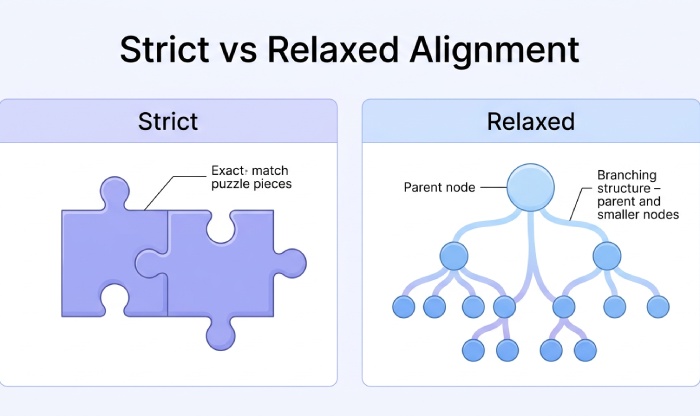
SPF alignment compares the From address domain to the domain in the reverse path (the Return Path, also called bounce address or mail from). Many receivers also record the HELO hostname/FQDN (HELO or EHLO) used during the smtp handshake, but SPF alignment itself keys off the Return Path. If the organizational domain in the From address matches (relaxed alignment) or is exactly identical (strict alignment), SPF alignment passes. If not, you’ll see SPF alignment failed in the email headers and DMARC may treat the message as an authentication error.
Strict vs relaxed alignment (aspf/adkim) details
DMARC supports aspf and adkim tags. aspf=s sets strict alignment for SPF; aspf=r allows relaxed alignment. adkim controls DKIM alignment similarly. If your DMARC record or DMARC solution (e.g., GoDMARC, EasyDMARC, PowerDMARC, or Godmarc) is set to strict, small differences, such as using marketing.mydomain.com in the Return Path while the From is sales@marketing.mydomain.com, can cause alignment problems and trigger SPF alignment failed.
Why SPF alignment failed breaks email deliverability
When SPF alignment failed appears, DMARC can quarantine or reject depending on DMARC policy (p=quarantine/reject). Learn more about SPF alignment and how DMARC uses it. This harms email deliverability, increases bounced messages, and can damage sender reputation. You may see soft bounce codes at first, then hard bounce responses as receivers enforce stricter policies through the DMARC Reject Stage.
How Qualtrics sends mail: From domain vs. Return-Path (MailFrom) and default bounce domains
Sending domain choices and the bounce address
Qualtrics can send on behalf of your sending domain (e.g., mydomain.com) while using its own default bounce address (Return Path) unless you configure a custom one. The visible From address could be sales@marketing.mydomain.com, but the mail from address (reverse path) may be a Qualtrics-assigned domain. If those domains don’t align per your DMARC policy, SPF alignment failed shows up even when the SPF check passes for the Qualtrics IPs.
Qualtrics default reverse path and HELO hostname
By default, Qualtrics uses its infrastructure’s HELO hostname and Return Path. The HELO hostname (HELO FQDN) is useful for an email investigation tool but does not drive SPF alignment. The key is the Return Path domain. If it’s not within your organizational domain, DMARC SPF alignment fails.
Common scenarios with Google Workspace/gmail identities
If you use Google Workspace and send via Qualtrics with a gmail From address or a domain alias on your primary domain, the Return Path must still align. Mismatched aliases, a secondary domain, or incorrect gmail settings can exacerbate authentication problems.
Diagnosing failures: Reading Authentication-Results headers and mapping identities to alignment
Where to find email headers and Authentication-Results
Open email headers in the recipient mailbox. In Gmail, use Show original in gmail settings. Look for Authentication-Results: spf=pass/fail, dkim=pass/fail, dmarc=pass/reject/quarantine. You want spf=pass and “spf alignment pass” with DMARC to avoid SPF alignment failed.
Map identities: From address, mail from, HELO, DKIM signature d=
Record these identities:
- From address: the visible sender (e.g., sales@marketing.mydomain.com)
- Return Path / mail from: the bounce address (e.g., bounce@b.qualtrics-example.net)
- HELO hostname: the smtp HELO FQDN used by the server
- DKIM signature d=: the domain asserting the DKIM signature
If From is mydomain.com but the reverse path is a non-aligned domain, SPF alignment failed is expected under strict alignment.
Using online tools to run an SPF check and SPF lookup
Leverage an SPF checker or SPF validator (e.g., EasyDMARC, PowerDMARC, Domain Admin Tools, GoDMARC, or other online tools) to run an SPF check, do an SPF lookup, and test SPF record syntax. These analytical tool options can also test SPF alignment and identify source of error, such as missing allowed IP addresses or broken includes. Our guide to troubleshoot SPF validation walks through common failures.
Practical example trace with marketing.mydomain.com and sales@marketing.mydomain.com
Example Authentication-Results:
- spf=pass smtp.mailfrom=bounce@qmail.example
- dkim=pass header.d=mydomain.com
- dmarc=fail (p=reject) header.from=mydomain.com reason=SPF alignment failed
Here, SPF validation passes for the Qualtrics IP, but DMARC fails because the Return Path domain doesn’t align with mydomain.com.
Auditing your DNS: Current SPF, DMARC, and DKIM records at the apex and relevant subdomains
Inventory your DNS records and organizational domain
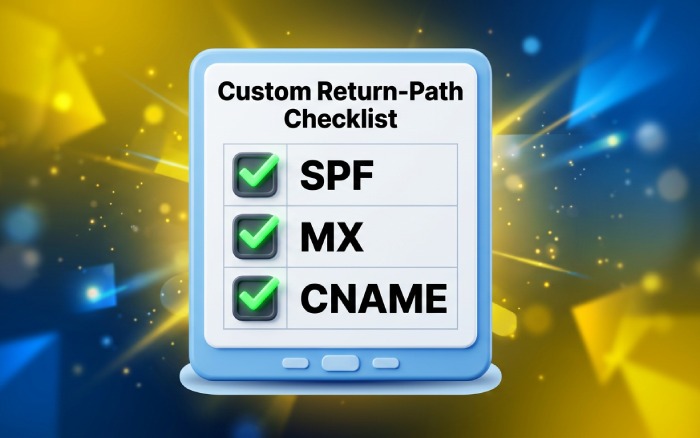
Check DNS records at the apex (mydomain.com) and any subdomains used for sending, like marketing.mydomain.com or a custom bounce FQDN. Confirm a single SPF record per host; multiple SPF records will cause an authentication error. Validate your DKIM selector and DKIM signature configuration. If you use external services (KnowBe4, kopage.com, michaels.me.uk), ensure their includes are correct.
Avoid multiple SPF records and include allowed IP addresses
Your SPF record configuration should include all allowed IP addresses and vendors: v=spf1 include:_spf.qualtrics.example include:_spf.google.com ip4:203.0.113.10 -all Avoid duplicative entries that create multiple SPF records.
Validate syntax and flatten includes
Run test SPF record checks with an SPF generator and SPF record checker to catch long include chains that might exceed lookup limits. Where necessary, flatten includes cautiously. Keep the Sender Policy Framework line under 255 characters per chunk. Review the correct SPF record format before publishing.
Change control: update SPF record and wait for DNS propagation
When you update SPF record or DMARC record entries, document the validation process and wait for DNS propagation (typically up to 24-48 hours). During this window, test SPF alignment and DMARC alignment periodically.
Configuring a custom Return-Path (bounce) domain in Qualtrics to achieve SPF alignment
Choose an FQDN for the bounce domain and publish DNS
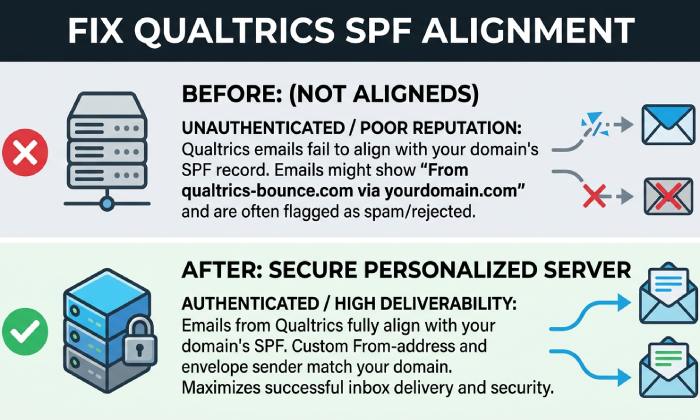
Select a bounce domain within your organizational domain, e.g., bounce.mydomain.com or mailreturn.marketing.mydomain.com, ensuring it’s a Fully Qualified Domain Name. Publish:
- SPF record authorizing Qualtrics’ allowed IP addresses or include mechanism they provide
- MX record per Qualtrics guidance (to handle bounced emails)
- Any CNAME targets Qualtrics requires for verification
Consult your DNS host (Cloudflare or similar) to add these DNS records correctly.
DNS entries needed: SPF record, MX, CNAME per Qualtrics
Qualtrics typically provides exact hostnames to include. Ensure your SPF authentication for the new bounce domain passes an SPF check and that SPF alignment will compare this bounce domain with your From domain as required by your DMARC policy.
Point Qualtrics brand to the custom bounce address
In your Qualtrics brand/admin settings, configure the custom bounce address/Return Path to the chosen FQDN. The exact UI can vary; if unsure, open a ticket with the DMARC service or Qualtrics support. Confirm the HELO hostname is appropriate if that setting is exposed in email server settings.
Test SPF alignment and DMARC policy after configuration
Send test messages from sales@marketing.mydomain.com and from the primary domain. Use an email investigation tool to read email headers. You want:
- spf=pass with the custom Return Path domain
- dkim=pass with d=mydomain.com (if DKIM is set)
- dmarc=pass with alignment satisfied (no SPF alignment failed)
Topics
General Manager
General Manager of DuoCircle. Product strategy and commercial lead for AutoSPF's 2,000+ customer base.
LinkedIn Profile →