Webmail Volusion DKIM Failures: How to Troubleshoot DNS Verification Issues

Quick Answer
Webmail Volusion DKIM failures often result from incorrect DNS records, missing DKIM keys, or verification errors. Learn how to troubleshoot DKIM configuration issues, fix DNS settings, and improve email authentication and deliverability.
DKIM (DomainKeys Identified Mail) is an email authentication method that allows receiving mail servers to verify a message’s cryptographic signature using a public key published in DNS. For businesses using Volusion Webmail, correctly configured DKIM helps protect email integrity and supports domain-based email authentication. It is particularly important for store communications, including order updates, customer service replies, and messages to vendors.
When DKIM is working correctly, your Volusion email messages are signed by the sending email server, and the recipients mail system checks a public DNS record on your domain to confirm that the signature is valid. If the DKIM record is missing, malformed, or published under the wrong host name, email authentication can fail. That may cause outgoing mail to land in spam, be rejected, or trigger warnings in a customers email inbox.
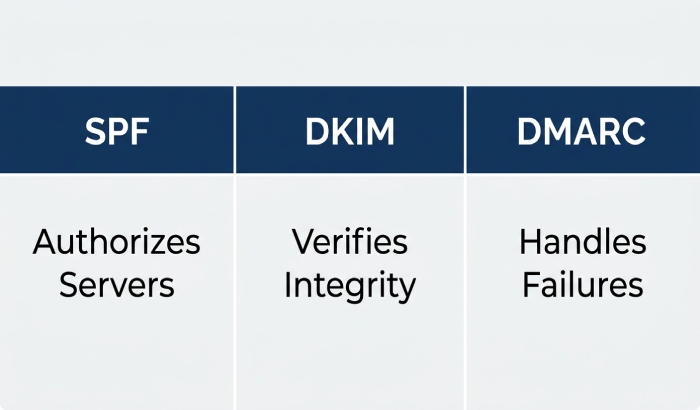
A store owner using Volusion Webmail should think of DKIM as part of a larger trust framework that includes SPF and DMARC. SPF confirms which servers can send mail for your domain, DKIM confirms message integrity, and DMARC tells receiving providers what to do when authentication fails. These records matter whether you compose email in Volusion Webmail, connect to email through an email client, or use Outlook, Office 365, a PC, Mac, or mobile device.
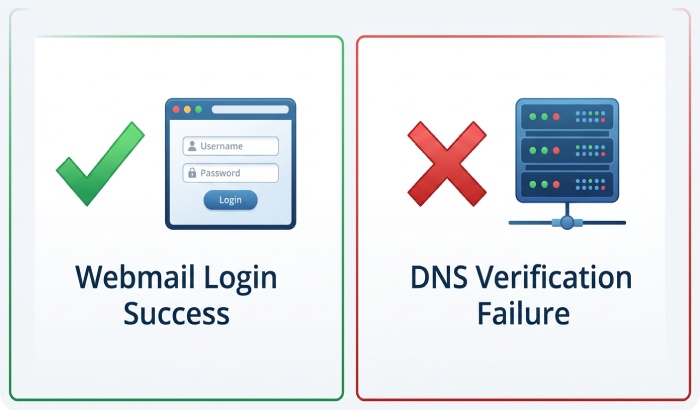
DKIM issues are not usually caused by the webmail login itself. You may be able to complete a webmail login at mail.volusion.com with the correct email address and password, view your email inbox, reply to email, and manage email normally, while DNS verification still fails in the background. That is why troubleshooting should include both account-level checks and DNS-level checks. Effective email security helps protect sensitive information and prevent phishing attacks, email spoofing, and unauthorized access.
Common Signs of Volusion DKIM Verification Failures
Volusion DKIM verification problems can occur when the required DNS record is missing, incorrectly configured, or no longer matches the active email service. Although these issues can affect email authentication, spam placement and delivery failures may also have other causes.
Common indicators to investigate include:
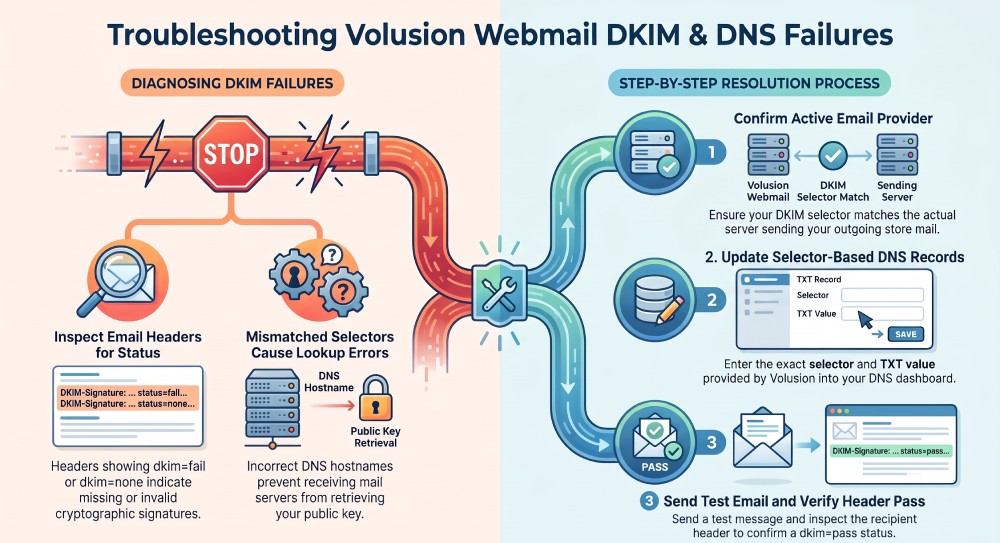
- DKIM authentication failures: Email headers show dkim=fail for the affected domain.
- Missing DKIM signatures: Email headers show dkim=none, indicating that a DKIM signature was not detected.
- DNS lookup errors: The receiving mail server cannot retrieve the public key associated with the DKIM selector.
- Failed Volusion verification: The DKIM verification tool cannot confirm the required DNS record.
- Authentication problems after DNS changes: DKIM stops passing after a domain migration, DNS update, or email hosting change.
To identify the actual cause, inspect the email’s authentication results and verify the DKIM selector, DNS hostname, and public key provided by Volusion or your email hosting provider. Do not assume that spam placement, a via label, or an undelivered message proves a DKIM problem. Check SPF, DMARC alignment, and other relevant delivery factors before changing DNS records.
How Volusion Webmail Uses DNS Records for Email Authentication
Volusion email configurations can depend on the email hosting service associated with your account. Before troubleshooting DKIM, identify which service sends messages from your domain and confirm the required DNS settings with Volusion or your email provider.
DNS records serve different purposes in email authentication. MX records direct incoming email to the appropriate mail servers, SPF identifies authorized sending sources, DKIM allows receiving servers to verify a message’s cryptographic signature, and DMARC defines how receiving servers should handle messages that fail authentication and alignment checks.
The correct DKIM selector, hostname, and public key depend on the active email configuration. Do not copy DNS records from another provider or add a new DKIM record until you have confirmed the values required for your domain.
Checking Your Current DKIM, SPF, and DMARC DNS Configuration
Start by identifying which provider manages your domain’s DNS records. This may be your domain registrar, a dedicated DNS hosting service, or another provider. Sign in to the relevant DNS management dashboard and review the email authentication records required by your active email hosting service. Confirm that the records are publicly visible and match the provider’s instructions.
For SPF, locate the TXT record that specifies which servers are authorized to send email for your domain. Use the SPF value provided by Volusion or your current email hosting provider rather than copying a record from another configuration. A domain should have only one SPF policy record at a given hostname. Multiple SPF records at the same hostname can cause SPF evaluation to return a permanent error. Before editing an existing record, check whether other legitimate email services rely on it so their sending authorization is preserved.
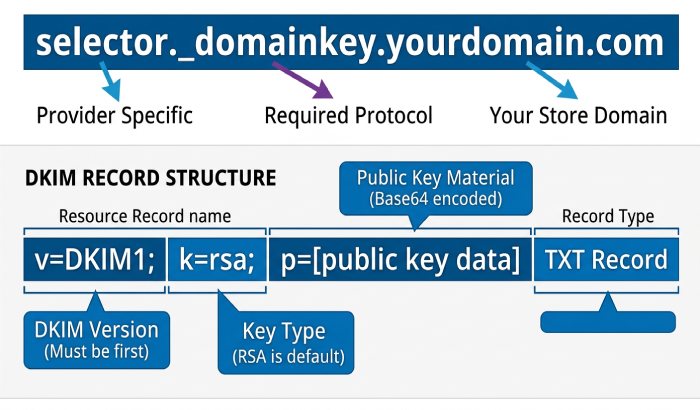
For DKIM, look for a selector-based TXT record, commonly formatted like:
selector._domainkey.yourdomain.com
The exact selector must match what Volusion, Rackspace, or your email hosting provider expects. If the selector is wrong, receiving providers cannot find the public key, even if the TXT value itself is valid. This is one of the most common reasons Volusion Webmail DKIM verification fails.
For DMARC, check for a TXT record at:
_dmarc.yourdomain.com
A basic DMARC record may specify a monitoring policy, while a stricter policy may quarantine or reject unauthenticated messages. If you recently changed Volusion email settings or migrated store mailboxes, start with a monitoring policy until SPF and DKIM pass consistently.
Step-by-Step Guide to Verifying Volusion DKIM Records
To verify Volusion DKIM records, start by confirming which service is responsible for sending mail from your domain. Many store owners use Volusion Webmail through Rackspace Email, while others send through Office 365, Outlook, Gmail, Yahoo, or another email client. DKIM must align with the actual email server sending your outgoing mail, so this first check prevents you from adding unnecessary or conflicting DNS records.
- Sign in to My.Volusion: Go to My.Volusion or Auth.volusion.com and complete the login with your email address and password. If you cannot complete the webmail login, use the recover password or forgot password option before changing DNS. A failed login can indicate a disabled email account, incorrect email credentials, or a mailbox that was never fully provisioned.
- Open the email management area: In the Volusion Dashboard, check the available email settings to identify the service that manages your domains email. If DKIM settings are available in your account, follow Volusions instructions to verify the required DNS record. If you cannot find these settings, contact Volusion support or your current email hosting provider to confirm the correct DKIM selector, record type, and value before making DNS changes.
- Confirm the sending domain and email address: Check the domain tied to the email address, such as Store@yourdomain.com. If the store owner also uses a personal email like store.owner@gmail.com or StoreOwner@gmail.com, remember that DKIM for Gmail does not authenticate mail sent from Volusion Webmail. Your Volusion email DKIM record must authenticate the business email address used for customers, vendors, and business partners.
- Check current DNS records: In your domain registrar or DNS hosting provider, locate TXT or CNAME records for DKIM. If Volusion Support or Rackspace provides a selector, verify that the selector exists exactly as instructed. DKIM fails often because a domain has an old Microsoft, Google, or Rackspace selector that no longer matches the active outgoing mail platform.
- Test sending and receiving: After records are added, compose email from Volusion Webmail and reply to email from an external account. Check the email inbox for incoming email, then inspect the message headers to confirm email authentication. If the header shows DKIM pass, your Volusion email configuration is working.
General Manager
General Manager of DuoCircle. Product strategy and commercial lead for AutoSPF's 2,000+ customer base.
LinkedIn Profile →