Troubleshooting the common SPF authentication issues for the best email deliverability

Quick Answer
If your SPF record has any errors and you don’t fix them soon, then recipients’ mailboxes start marking your emails as spam or rejecting them outright. This way, communication takes a toll, and your brand’s reputation tarnishes over time. Poor email deliverability results in issues such as low engagement rates, wasted resources, compliance risks, and diminished customer trust.

If your SPF record has any errors and you don’t fix them soon, then recipients’ mailboxes start marking your emails as spam or rejecting them outright. This way, communication takes a toll, and your brand’s reputation tarnishes over time. Poor email deliverability results in issues such as low engagement rates, wasted resources, compliance risks, and diminished customer trust.
“Email deliverability starts with authentication,” says Brad Slavin, General Manager of DuoCircle. “In 2026, if your SPF, DKIM, and DMARC aren’t all passing and aligned, your email goes to spam. It’s not about content anymore - receivers check authentication before they even look at what you wrote.”
Email authentication directly impacts deliverability: Google and Yahoo’s February 2024 bulk sender requirements enforce SPF + DKIM + DMARC as hard prerequisites for inbox placement. Unauthenticated bulk mail is now routed to spam or rejected outright by both providers.
Understanding and fixing the common SPF errors isn’t too tricky, provided you are ready to spare some time to learn the configurational and syntactical rules. We suggest you frequently run your SPF record through an online SPF record lookup tool to see what errors are there in it. If you are getting external complaints about not receiving emails from you or receiving potentially fraudulent emails, then it’s definitely the time to run your SPF record through a lookup tool. This article discusses the commonly triggering errors and ways to fix them on your own. For a forward look at where these standards are going, read about the future of SPF.
How to Check and Update Your SPF Record?
-
Log into your DNS management tool. This is usually provided by your domain registrar orhosting provider.
-
Find the SPF record in the list of DNS records for your domain.
-
Review and update the SPF record and ensure it’s correct based on the guidelines provided.
-
Test the SPF record using online tools like MXToolbox to check if it’s valid.
Commonly triggering SPF errors
Identify and fix these issues with SPF authentication, improve email deliverability, and reduce the risk of being marked as spam.
1. Existence of multiple SPF records
There is a rule to have only one SPF record per domain to avoid confusion, validation failures, and clashes of mechanisms. If, by any chance, your business domain has multiple SPF records associated with it, an error will be triggered. In such a case, merge all of them into a single record:
-
Combine all IP addresses and domain references from each SPF record into a single entry.
-
Keep only one ‘v=spf1’ at the start.
-
Ensure the combined SPF record stays within the 255-character limit per line.
-
End with ‘~all’ or ‘-all’ depending on your policy.

Test the merged record using an SPF validator to ensure it’s correct.
2. No SPF record found
The ‘No SPF record found’ error indicates the absence of an SPF record in your domain’s DNS. Without this record, email servers cannot verify if the sender is authorized to send emails on behalf of that domain, increasing the likelihood that emails from this domain will be marked as spam or rejected.
So, if you don’t have an SPF record, create it as soon as possible using an online SPF record generator. If you already have one, update it on your domain’s DNS. Also, Google Workspace doesn’t include other services like your CRM, so make sure to include every service that sends emails on your behalf.
3. Exceeding the character limit
The DNS protocol has a maximum size for DNS records, which is 512 bytes for responses over UDP, to facilitate management and prevent abuse. That’s why an SPF record can be no longer than 255 characters. A character limit helps prevent overly complex SPF records that could be exploited. Lengthy and intricate records might attempt to encompass too many sending sources, which can lead to confusion and errors in email delivery.
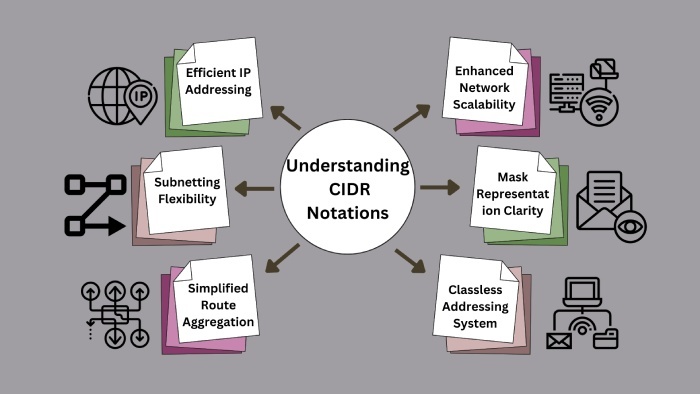
So, if your SPF record is longer than 255 characters, consider consolidating it using the ‘include’ mechanism, optimizingIP address lists by using CIDR notations to represent a range, or removing redundant entries. Also, If you control multiple domains, you can create shorter alias domains that can be referenced in the SPF record. This can help keep the record length down.
4. Inclusion of invalid macros
Here are the possible invalid alterations of using SPF macros. If any of these are present in your SPF record, fix them to avoid email deliverability issues.
-
Macros are not enclosed in braces {}.
-
Using a macro that does not exist in SPF.
-
Using macros in unsupported contexts. For example, using macros within an include mechanism is invalid.
-
Using macros incorrectly within SPF modifiers (like redirect or exp) may not produce the expected results. If they do not conform to the required format or context, they can be considered invalid.
-
Using multiple macros in a single mechanism may lead to unexpected results. While technically possible, it can complicate the SPF record and lead to syntax errors.
-
If the expanded value of a macro exceeds the 255-character limit for DNS records, it becomes invalid. Macros should be used with this limitation in mind to ensure they don’t cause the SPF record to become too long.
5. Too many DNS lookups
The ‘Too many DNS lookups’ error occurs when an SPF record exceeds the limit of 10 DNS lookups during the evaluation process. Each mechanism in an SPF record, such as include, a, and mx, counts toward this limit. When the number of lookups surpasses 10, email servers may reject the SPF check, leading to potential email delivery issues. If you’re new to this, our primer on what is an SPF lookup explains how each one is counted.
To fix this issue, use AutoSPF’s automatic SPF flattening tool, which reduces the number of DNS lookups in an SPF record. It involves replacing mechanisms that require lookups (like include statements) with the actual IP addresses or a consolidated representation of the allowed sending sources. This method enhances your email authentication while ensuring compliance with SPF lookup limits. See how it works to understand the flattening process.
A valid SPF record increases the chances of your emails being accepted and not marked as spam. For hands-off maintenance, AutoSPF keeps your record valid and within limits automatically.
Content Specialist
Content Specialist at AutoSPF. Writes vendor-specific SPF configuration guides and troubleshooting walkthroughs.
LinkedIn Profile →