Are Spam Emails Safe to Open? Risks and Email Security Tips

Quick Answer
Are spam emails safe to open? Simply viewing one is usually less risky than clicking links, opening attachments, or replying. Learn how to recognize spam threats, handle suspicious emails safely, and strengthen protection with SPF, DKIM, and DMARC.
Is It Safe to Open Spam Emails? What Happens When You View One
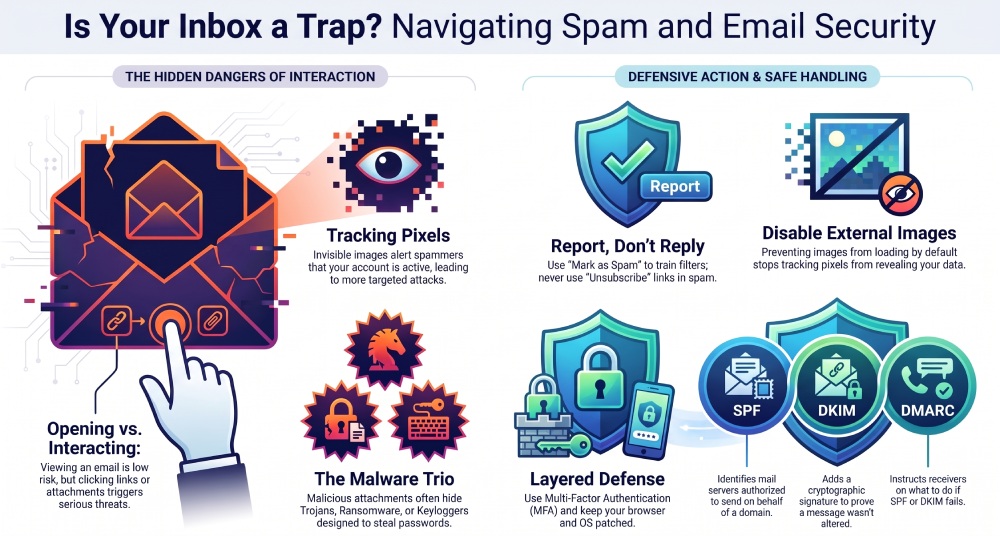
In most modern email systems, simply opening or viewing a spam email is generally less risky than clicking a link, opening an attachment, or responding to the sender. Email providers use spam filters and security controls to reduce exposure to malicious content and suspicious messages. However, some emails may contain tracking pixels or other remote content that can reveal information about message engagement. The greater security risks usually arise when you interact with links, attachments, or requests for sensitive information.
The greater risk usually comes from interacting with a suspicious message. A phishing email may impersonate a trusted company, bank, delivery service, or workplace platform to make the message appear legitimate. It may use links, attachments, urgent requests, or other social-engineering tactics to encourage you to reveal sensitive information or take an unsafe action. Some messages may also use remote content, such as tracking pixels, to detect whether an email was viewed.
If you open spam emails accidentally, do not panic. Do not reply to sender, do not click anything, and do not download files. Close the message, mark as spam, and delete email from your inbox if your email client allows safe handling.
What Happens Behind the Scenes When You Open a Suspicious Email
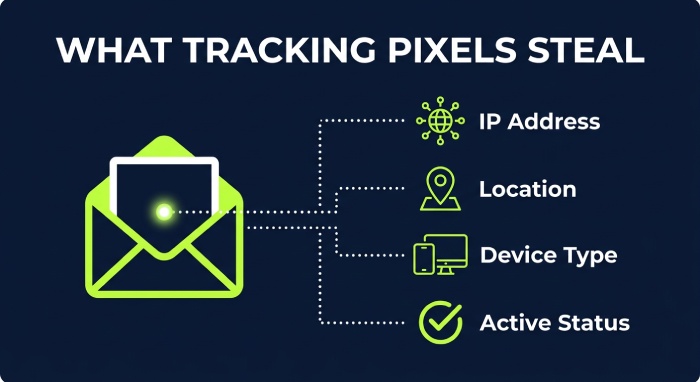 A suspicious email may contain HTML elements that load remote content. One common tactic is the use of tracking pixels, which are tiny invisible images that notify the sender when the message was opened. Tracking pixels can reveal your IP address, approximate location, device type, and whether your email address is active. That can lead to increased spam and more targeted phishing attacks.
Older or outdated email clients may have fewer protections against malicious content, so keeping your email application, browser, and operating system updated is important. Modern email services typically use security controls to limit potentially harmful content, but these protections do not eliminate every risk. Users should still avoid clicking suspicious links, opening unexpected attachments, or interacting with messages that request sensitive information.
A spam email should always be treated according to its risk level. A plain-text advertisement is lower risk; a phishing email with malicious links, attachments, and urgent payment demands is a serious security risk.
Key Risks of Spam Emails: Phishing, Malware, Tracking Pixels, and Scams
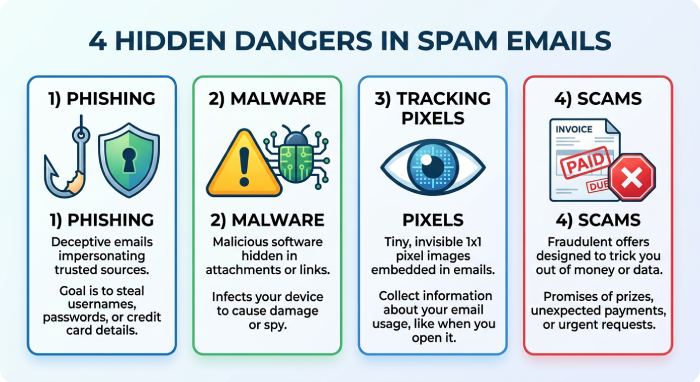
Spam is not just annoying. A spam email can be used to deliver phishing attempts, malware, financial scams, or other deceptive messages that may put personal information and accounts at risk. Some dangerous spam messages combine social-engineering tactics with malicious links or attachments designed to trick recipients into taking unsafe actions.
Phishing Email Threats and Credential Theft
A phishing email is designed to look trustworthy. It may claim your Microsoft 365 account is expiring, your Outlook mailbox is full, your Gmail password must be reset, or your Yahoo account has suspicious activity. The goal is to make you enter credentials on a fake login page.
Before trusting a message, verify email address details carefully. Look for misspellings, unusual domains, mismatched sender names, and pressure tactics*.* A phishing email often creates urgency: “Your account will be closed today” or “Confirm payment immediately.” These phishing attacks are designed to bypass judgment and push you into clicking links.
Malware, Ransomware, Keyloggers, and Trojans
A spam email may carry malware through attachments or links to compromised websites. Malware can include Trojans, spyware, ransomware, and keyloggers. Ransomware encrypts files and demands payment, while keyloggers record keystrokes to steal passwords, payment details, and business credentials.
A file named like an invoice, resume, shipping notice, or tax document may hide malicious macros or scripts. Downloading attachments from an unknown sender can install malware, ransomware, or keyloggers. A Keylogger may remain silent for weeks, while Ransomware may immediately lock files across a local system or shared network.
Tracking Pixels and Privacy Exposure
Tracking pixels do not usually install malware by themselves, but they are a privacy and security risk. They help spammers determine which recipients are active and which subject lines work. A campaign using tracking pixels can result in increased spam, more personalized scams, and additional phishing email attempts.
Disable external images by default where possible. Outlook, Gmail, and Yahoo all provide options or protections that limit external images and remote content. This reduces the value of tracking pixels and improves email safety.
Scam Patterns to Recognize
Common spam email scams include fake invoices, fake antivirus alerts, prize notifications, romance scams, crypto investment schemes, and fraudulent support messages pretending to be legitimate technical support. Attackers may also impersonate public guidance or community representatives to appear credible. Others use familiar brands or services to create a false sense of trust and encourage recipients to click links, share information, or make payments.
What Not to Do: Links, Attachments, Replies, and Unsubscribe Traps
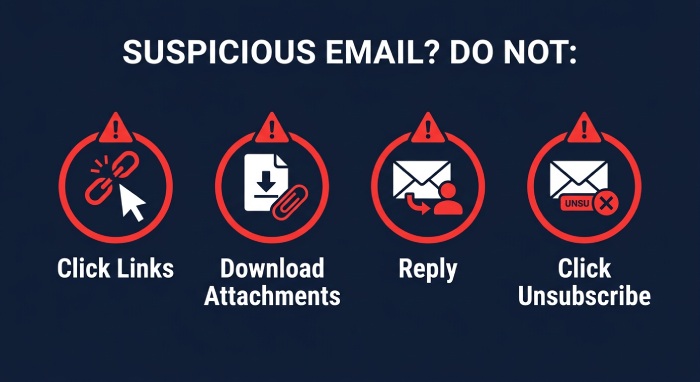
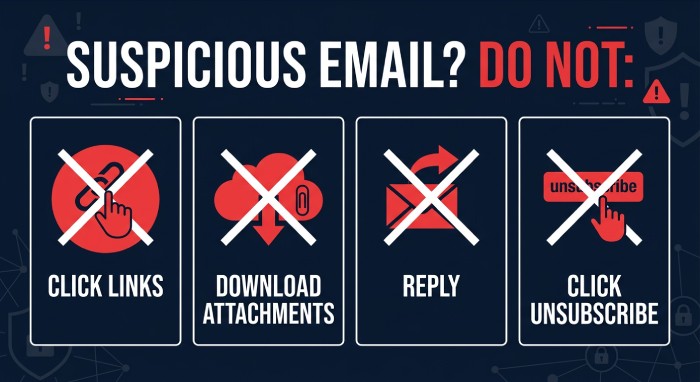 The most dangerous actions are clicking links, downloading attachments, enabling macros, replying, forwarding sensitive data, or calling phone numbers listed in a suspicious email. Malicious links can send you to credential-harvesting pages, drive-by malware sites, or fake payment portals. Attachments may contain malware, ransomware, keyloggers, or Trojans.
Do not reply to sender. Even a simple “remove me” can confirm your email address is active. Be cautious with unsubscribe links in unknown spam email messages. Legitimate businesses must provide unsubscribe options, but criminal senders use fake unsubscribe traps to verify recipients or redirect them to malicious links.
If you already clicked a link or opened attachments, treat it as a security risk. Immediately disconnect from sensitive systems if needed, run a virus scanner and spyware scanner, change your password from a clean device, enable multifactor authentication, and log out from all devices. If business data is involved, notify your IT or security team.
How to Handle Spam Safely: Reporting, Blocking, Deleting, and Filtering
Safe handling depends on your email client and provider. Use the built-in report spam or mark as spam option instead of replying. This helps train filters and improve spam detection for future messages.
 If the message is clearly fraudulent, delete suspicious email after reporting it. You can also block the sender, but blocking alone is not enough because attackers often rotate addresses and domains. If the suspicious email impersonates a company, report it to that company’s abuse team.
For serious financial fraud, identity theft, ransomware, or business email compromise, report the incident to the FBI’s Internet Crime Complaint Center, also known as IC3. The crime complaint center collects reports that support investigations into cybercrime and fraud.
Reporting Spam and Phishing Emails
When you receive a suspicious message, use your email provider’s built-in Report Spam, Junk, or Report Phishing option. Reporting unwanted messages helps improve filtering and can reduce similar emails from reaching your inbox.
Avoid replying to suspicious senders, clicking links, downloading attachments, or providing sensitive information. If a message appears to contain malware or another security threat, follow your organization’s reporting procedures rather than forwarding it to coworkers.
Organizations can also strengthen email security by properly configuring SPF, DKIM, and DMARC. These email authentication protocols help verify legitimate senders, reduce domain spoofing, and improve protection against phishing and other email-based threats.
Email Security Tips to Protect Your Inbox and Personal Information
Strong email safety requires layered defenses. Use multifactor authentication, unique passwords, updated software, and reputable endpoint protection. Keep Windows, Android, browsers, and productivity apps patched. Updated software reduces the chance that a malicious message can exploit your device security or browser security.
Use a reliable virus scanner and spyware scanner, especially if you suspect malware, keyloggers, or ransomware. Review account recovery options and remove unknown forwarding rules from your mailbox. If you suspect compromise, change your password immediately and log out from all devices.
Organizations should also strengthen network security with secure web gateways, attachment scanning, endpoint detection, and security awareness training. Sandboxing can detonate attachments in a controlled Sandbox environment before delivery to users.
Strengthen Authentication with SPF, DKIM, and DMARC
Email authentication helps receiving systems detect spoofed domains. SPF identifies which mail servers may send on behalf of a domain. DKIM adds a cryptographic signature to prove the message was not altered. DMARC tells receivers what to do when SPF or DKIM fails and provides reporting for domain abuse.
These email security protocols do not stop every phishing email, but they reduce spoofing and improve trust signals for legitimate mail. Email authentication tools can help organizations manage SPF, DKIM, and DMARC records more effectively.
General Manager
Founder and General Manager of DuoCircle. Product strategy and commercial lead for AutoSPF's 2,000+ customer base.
LinkedIn Profile →