NetSolutions Blackbaud SPF Setup: How to Configure SPF for Blackbaud

Quick Answer
NetSolutions Blackbaud SPF setup helps authenticate emails sent through Blackbaud and protect your domain from spoofing. Configure the correct SPF record in your DNS, include Blackbaud’s authorised sending sources, and validate the record to improve email deliverability and maintain reliable email authentication.
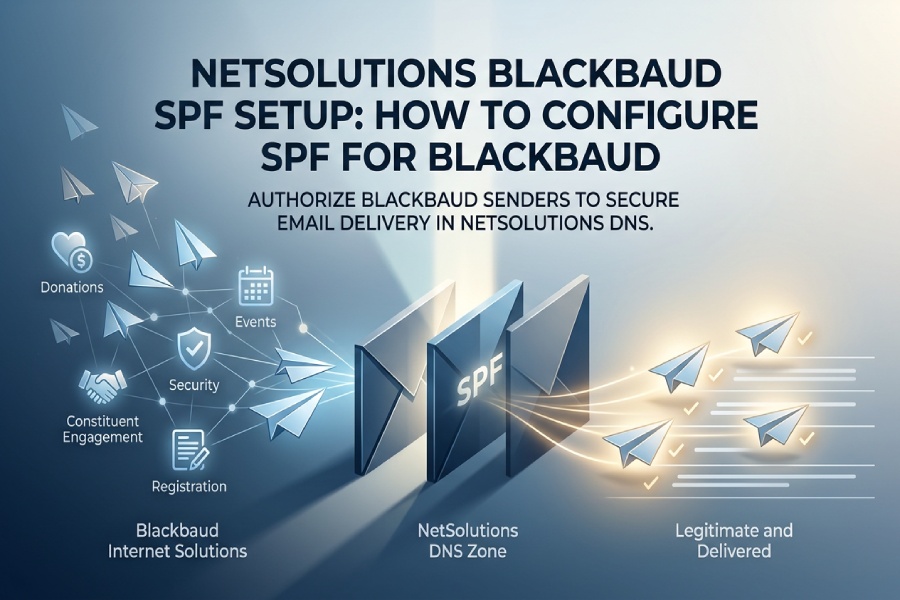
For organizations using NetSolutions DNS with Blackbaud, SPF configuration is a foundational email authentication control. Blackbaud Internet Solutions, often used alongside Blackbaud CRM, sends transactional and marketing email on behalf of your domain, including Donation Form confirmations, Event Registration Form messages, Events Registration Form notices, User Login Form emails, Payment 2.0 Form receipts, and Advanced Donation Form communications. Without a correct SPF record, receiving mail servers may treat these messages as suspicious, route them to spam, or reject them entirely.
SPF, or Sender Policy Framework, tells recipient mail systems which platforms are allowed to send email for your domain. When Blackbaud Internet Solutions sends email using your organizations domain, your NetSolutions DNS zone must authorize Blackbaud as a valid sender. This is especially important for messages related to Constituent engagement, Communication Consent, privacy preferences, and Solicit Code updates.
Reliable delivery is not just a marketing concern. Many Blackbaud CRM workflows involve personal data, privacy policies, data requests, and privacy preferences. If an email containing a consent statement, Communication Consent confirmation, Consent part submission, or Solicit Code acknowledgement fails to deliver, the Constituent experience suffers and administrative records may become harder to validate.
Proper SPF configuration helps ensure that legitimate Blackbaud emails are authenticated and delivered reliably, reducing the risk of important confirmations and notifications being marked as spam or rejected. AutoSPF helps businesses simplify SPF record management and strengthen email authentication.
How SPF Works for Blackbaud Email Authentication
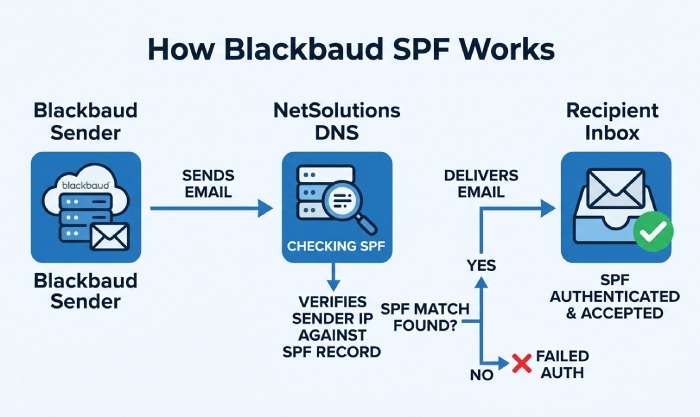
SPF works by publishing a TXT record in DNS. When Blackbaud sends email for your domain, the recipients mail server checks the domains SPF record to determine whether the sending server is authorized. If the SPF record includes the appropriate Blackbaud mechanism, the message is more likely to pass SPF validation.
A typical SPF record looks like this:
v=spf1 include:spf.*blackbaud*.com -all
The exact Blackbaud include mechanism can vary by product, region, or sending configuration, so you should confirm the current value with Blackbaud Support before publishing changes. Blackbaud Support can also help determine whether Blackbaud Internet Solutions, Blackbaud CRM, or another Blackbaud email service is responsible for the messages being sent.
SPF helps receiving mail servers verify that Blackbaud is authorised to send email on behalf of your domain. Configuring the correct SPF record can help legitimate Blackbaud messages pass authentication and reduce the risk of them being rejected or sent to spam.
SPF helps receiving mail servers verify that Blackbaud is authorised to send email on behalf of your domain. A correctly configured SPF record can improve the authentication and deliverability of legitimate Blackbaud messages, such as confirmations, notifications, and transactional emails.
Prerequisites Before Updating Your NetSolutions DNS Records
Before changing your NetSolutions SPF record, gather the following information:
- Access to NetSolutions DNS administration for the sending domain.
- The current SPF TXT record, if one already exists.
- The confirmed Blackbaud include mechanism from Blackbaud Support or official Blackbaud documentation.
- A list of all other authorized email senders, such as Microsoft 365, Google Workspace, fundraising platforms, or marketing tools.
- Administrative access in Blackbaud Internet Solutions or Blackbaud CRM to verify email settings.
Review your Blackbaud email configuration to identify which Blackbaud services, forms, and workflows send email using your domain. This helps ensure that all legitimate Blackbaud sending sources are accounted for when configuring SPF*.*
This review is also a good time to examine consent and privacy configuration. Communication Consent, Communication Preferences, Advanced Solicit Codes, Solicit Code values, and the Consent part can influence whether a Constituent should receive a particular communication channel. A Constituent record may contain privacy preferences, communication preferences, a Solicit Code, Advanced Solicit Codes, or Communication Consent indicators that determine whether email, phone, SMS, or mail is appropriate.
In Blackbaud CRM, teams often use custom reports, SSRS Reporting, transaction batch review, signup batch review, and Constituent Update Batch workflows to audit consent capture and data requests. These operational checks help ensure that privacy policies, personal data handling, opt-out signals, universal opt-out choices, and Communication Consent records remain consistent.
For web content, review any Privacy Page, privacy page copy, Formatted Text and Image Part, Email Editor templates, WYSIWYG content, HTML snippets, Anchor tags, and link insertion practices. If privacy policies or privacy resources are linked from Blackbaud Internet Solutions pages, verify that those links remain accurate and accessible.
Finding the Correct Blackbaud SPF Include Mechanism
Do not guess the SPF include value. The safest approach is to confirm the current SPF mechanism with Blackbaud Support, your Blackbaud Internet Solutions documentation, or your Blackbaud CRM administrator. Some organizations may have legacy configurations, multiple sending domains, or product-specific settings.
Useful places to check include:
- Blackbaud Support knowledgebase articles.
- The Blackbaud GDPR site and Privacy Resource Center.
- Blackbaud Internet Solutions email configuration documentation.
- Blackbaud CRM administration notes.
- Internal implementation documentation from consulting services or partner programs.
- Community references in User Gallery or implementation examples from organizations and contributors such as August Schools, Pete Russell, Red Arc, or Stu Hawkins.
Also review integrations from Blackbaud Marketplace. A Marketplace solution or third-party solutions integration may send email separately from Blackbaud Internet Solutions. SPF must include every legitimate sender, but it should not authorize platforms that no longer send mail for your organization. Managing multiple SPF includes carefully prevents the record from bloating.
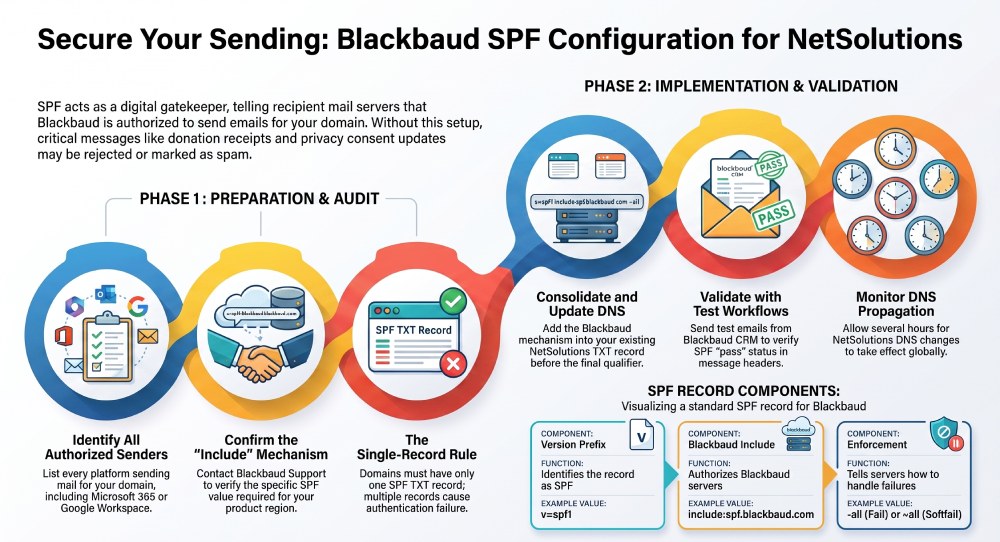
Step-by-Step Guide to Adding Blackbaud to Your NetSolutions SPF Record
1. Review your existing NetSolutions SPF TXT record
Log in to NetSolutions and open DNS management for your domain. Look for a TXT record beginning with:
v=spf1
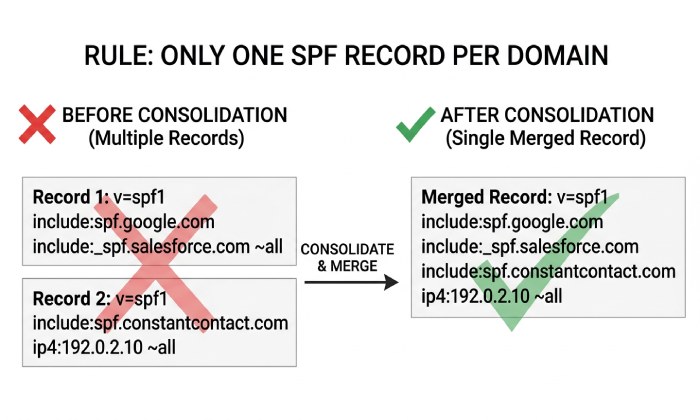
There should be only one SPF TXT record per domain. If you find multiple SPF records, consolidate them. Multiple SPF records can cause SPF failure, even if one of them includes Blackbaud.
For example, if your current record authorizes Microsoft 365, it may look like this:
v=spf1 include:spf.protection.outlook.com -all
To authorize Blackbaud as well, add the Blackbaud include mechanism before the final enforcement qualifier:
v=spf1 include:spf.protection.outlook.com include:spf.*blackbaud*.com -all
Again, verify the exact Blackbaud include with Blackbaud Support before publishing.
2. Add Blackbaud, save DNS, and validate authentication
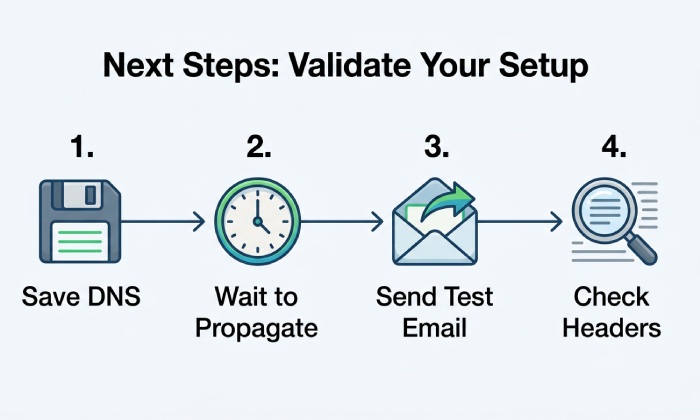
After adding the Blackbaud include, save the TXT record in NetSolutions. DNS propagation may take several minutes to several hours depending on TTL settings. Once the update propagates, send test messages from Blackbaud Internet Solutions and Blackbaud CRM workflows that represent your real-world use cases.
Send test emails from the Blackbaud services and workflows your organization uses. Review the message headers to confirm that SPF passes and that the sending domain matches your intended configuration.
Use an SPF lookup tool to confirm that your domain returns a single valid SPF record. Then review message headers from test emails to confirm SPF pass results. If SPF fails, check for syntax errors, excessive DNS lookups, missing include mechanisms, or an incorrect sending domain. An automated SPF flattening service keeps the record under the DNS lookup limit as you add senders.
After updating the SPF record, validate the configuration with your DNS or email administrator. Confirm that the domain publishes a single valid SPF record and that test messages from Blackbaud pass SPF authentication.If SPF fails, check for an incorrect Blackbaud include mechanism, multiple SPF records, syntax errors, or excessive DNS lookups.
A properly configured NetSolutions SPF record helps Blackbaud email reach the inbox while preserving the integrity of Blackbaud Internet Solutions, Blackbaud CRM, Constituent communications, privacy workflows, Solicit Code enforcement, and Communication Consent management. Staying informed about where SPF is heading helps you keep this setup future-proof.
General Manager
General Manager of DuoCircle. Product strategy and commercial lead for AutoSPF's 2,000+ customer base.
LinkedIn Profile →