Mailgun DMARC Setup Guide: Configuring SPF, DKIM, And DMARC Correctly

Quick Answer
To set up DMARC with Mailgun, configure SPF and DKIM records for your sending domain, then publish a DMARC record. Proper alignment improves email authentication, boosts deliverability, and helps protect your domain from spoofing and phishing attacks.
Try Our Free DMARC Checker
Validate your DMARC policy, check alignment settings, and verify reporting configuration.
Check DMARC Record →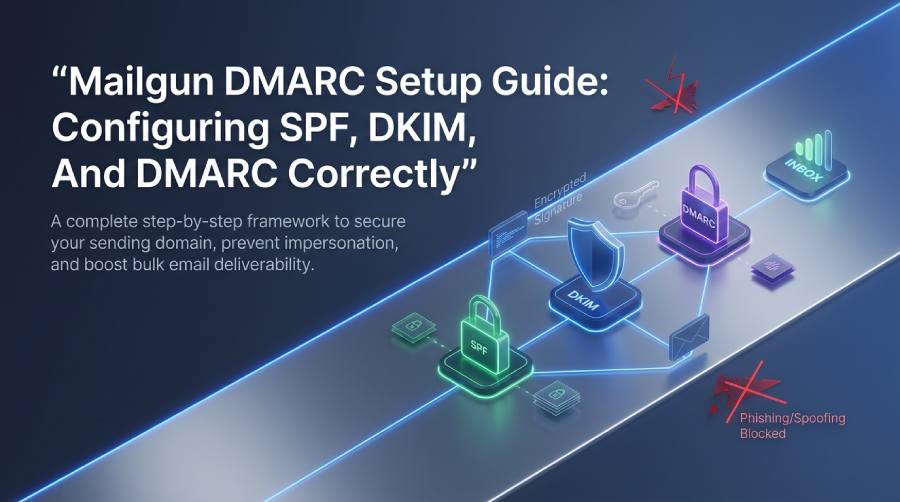
DMARC is essential when you send email through Mailgun because it tells mailbox providers how to evaluate messages that claim to come from your domain. For any Mailgun sending domain, DMARC works alongside SPF and DKIM to prove that your email is legitimate and that the visible From address aligns with authenticated infrastructure.
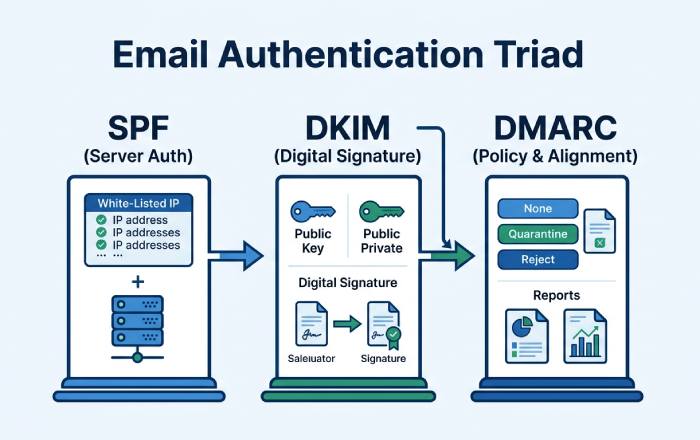
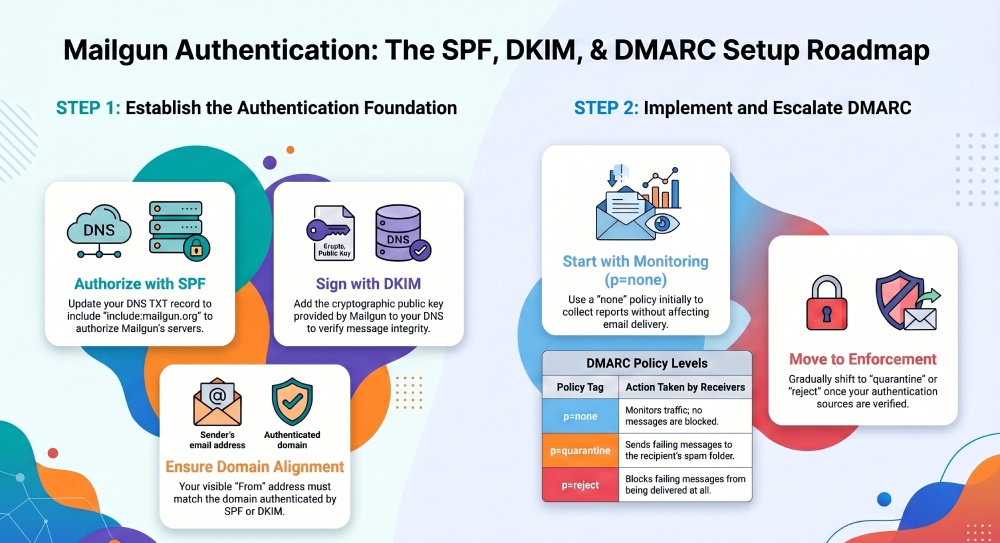
SPF, or Sender Policy Framework, authorizes specific SMTP servers to send mail for your domain. DKIM, or DomainKeys Identified Mail, adds a cryptographic signature that proves the message was not altered in transit. DMARC then checks SPF and DKIM results and, most importantly, verifies alignment between the authenticated domain and the domain shown to recipients.
Without DMARC, attackers can impersonate a domain owner and send fraudulent messages that appear to come from trusted brands, executives, or applications. That opens the door to email spoofing, credential theft, and every common type of phishing attack. For example, a bad actor could impersonate Jane Doe at johndoe.com or send fake billing alerts from superelitebusiness.com if the domain lacks strong email authentication.
DMARC also matters for deliverability and inbox placement. Google, Yahoo, Gmail, Yahoo Mail, and other ISPs increasingly expect proper email authentication from bulk senders. Google and Yahoo sender requirements include SPF or DKIM authentication, DMARC alignment, and operational practices such as list-unsubscribe and one-click unsubscribe for qualifying senders. If your Mailgun domain setup is incomplete, you may see more spam placement, deferrals, or a higher bounce rate.
Preparing Your Domain and DNS Before Mailgun Authentication
Before creating any SPF, DKIM, or DMARC record, confirm which domain will send email. Many teams use a subdomain such as marketing.johndoe.com, mg.johndoe.com, or mail.testdomain.com instead of the root domain. This keeps transactional or marketing traffic separate from corporate email and makes DNS management easier.
In the Mailgun Control Panel or Mailgun app, add your sending domain and review the DNS records Mailgun provides. Depending on your account, whether Foundation, Basic, Scale, or a Sinch Mailgun plan with Inbox Placement features, Mailgun will show the required records for authentication, tracking, and routing. You will then publish those records at your DNS provider.
Your DNS provider may be Cloudflare, GoDaddy, Route 53, Google Domains, or another registrar/DNS host. The key is to copy values exactly. DNS errors are one of the most common causes of failed email authentication. A missing character in a TXT record, an incorrect hostname, or multiple conflicting SPF records can break authentication checks.
Decide on the Sending Domain and Alignment Model
DMARC alignment compares the domain used by SPF or DKIM with the domain in the visible From address. For example, if Frodo Baggins sends from frodo@hobbiton.co.nz, DMARC expects SPF or DKIM to align with hobbiton.co.nz or an acceptable subdomain.
There are two alignment modes:
- Relaxed alignment allows organizational-domain matches, such as mail.hobbiton.co.nz aligning with hobbiton.co.nz.
- Strict alignment requires an exact domain match.
The DMARC tags adkim and aspf control DKIM alignment and SPF alignment. Most Mailgun senders begin with relaxed alignment because it supports practical subdomain sending while still enforcing DMARC compliance.
Configuring SPF and DKIM Records in Mailgun Correctly
SPF and DKIM are the foundation of Mailgun email authentication. DMARC relies on SPF and DKIM results, so do not publish a DMARC policy before confirming that Mailgun’s SPF and DKIM records are valid in DNS.
Configure SPF: Sender Policy Framework for Mailgun
SPF, short for Sender Policy Framework, identifies which mail servers are authorized to send on behalf of your domain. In Mailgun, SPF is typically added as a DNS TXT record that includes Mailgun’s sending infrastructure. A quick glossary of SPF terms can help if any of this vocabulary is new.
A common SPF TXT record looks similar to:
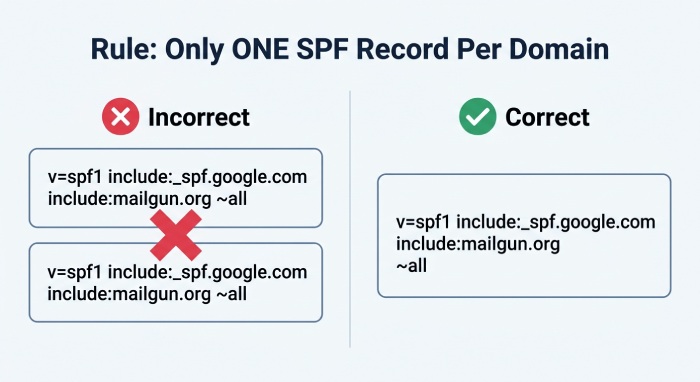
v=spf1 include:mailgun.org ~allYour exact SPF value may vary depending on Mailgun’s instructions, so use the value shown in the Mailgun Control Panel. If your domain already has SPF for Google Workspace, Microsoft 365, or another sender, do not create a second SPF record. DNS should contain only one SPF TXT record per hostname. Instead, merge the mechanisms into one record. When the number of includes grows, automated SPF flattening can keep the record valid without manual edits.
For example:
v=spf1 include:_spf.google.com include:mailgun.org ~allThis allows both Google and Mailgun SMTP servers to pass SPF. Watch the total number of includes, because exceeding the SPF lookup limit will cause SPF to fail with a PermError. However, SPF alone is not enough for DMARC because SPF alignment can fail when return-path or bounce domains differ from the visible From address. That is why DKIM is usually the stronger authentication path for Mailgun DMARC alignment.
Configure DKIM: DomainKeys Identified Mail for Mailgun
DKIM, or DomainKeys Identified Mail, signs outbound email with a private key. Receiving mail servers retrieve the public key from DNS and validate the DKIM signature. If DKIM passes and the DKIM signing domain aligns with the From address domain, DMARC can pass even if SPF alignment does not.
Mailgun will provide one or more DKIM DNS records. These are usually CNAME or TXT records, depending on your Mailgun configuration. Publish them exactly as shown by Mailgun. If you ever need to generate a signing key outside Mailgun, use our DKIM generator. Once DNS propagation completes, Mailgun should mark DKIM as verified.
Common SPF and DKIM Mistakes
Common mistakes include publishing DKIM under the wrong hostname, adding quotation marks incorrectly, creating duplicate SPF records, or authenticating a root domain while sending from a different subdomain. For instance, if John Doe sends from newsletter@marketing.johndoe.com, DKIM should support that sending domain, not only johndoe.com.
When to Contact Mailgun Support
If SPF or DKIM does not verify after DNS propagation, check the record with AutoSPF, MX Toolbox, Dmarcian, or Red Sift Investigate. If the record appears correct but Mailgun still does not validate it, contact the Mailgun Support team with screenshots from your DNS provider and the Mailgun app.
Creating and Publishing a DMARC Record for Mailgun
Once SPF and DKIM are in place, create your DMARC record. A DMARC record is published in DNS as a TXT record at _dmarc.yourdomain.com. For example, if your sending domain is testdomain.com, the hostname is:
_dmarc.testdomain.comA starter DMARC record usually looks like this:
v=DMARC1; p=none; rua=mailto:dmarc-reports@testdomain.comThis DMARC syntax includes the DMARC version, the DMARC policy, and a destination for aggregate DMARC reporting. The rua tag defines the report email address that receives aggregate reports from participating receivers.
Choose the Right DMARC Policy
Your DMARC policy determines the policy action receivers should take when a message fails DMARC authentication checks and alignment.
The main DMARC policy options are:
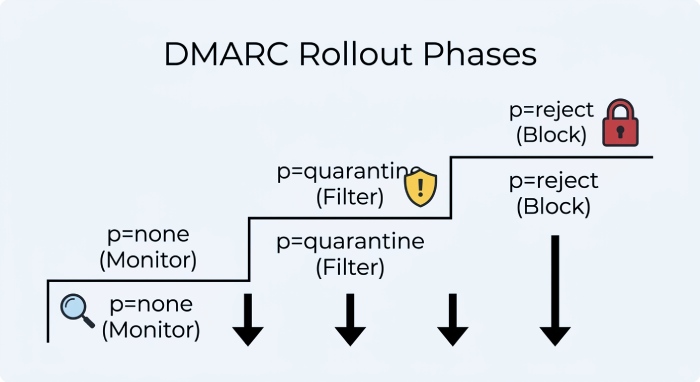
- none policy: p=none monitors traffic without asking receivers to block or filter messages.
- quarantine: p=quarantine asks receivers to place failing messages in spam or suspicious folders.
- reject: p=reject asks receivers to reject failing messages outright.
Most Mailgun senders should begin with p=none. This lets you collect DMARC reporting data while you verify that SPF, DKIM, and alignment are working correctly. After reviewing reports and fixing unauthorized sources, you can move from p=none to p=quarantine, then eventually to p=reject.
A more complete DMARC record might look like:
v=DMARC1; p=quarantine; rua=mailto:dmarc-reports@testdomain.com; adkim=r; aspf=rHere, adkim=r and aspf=r set relaxed alignment for DKIM and SPF. If you later require stricter controls, you might use strict alignment with adkim=s and aspf=s, but only after confirming all legitimate Mailgun traffic passes DMARC.
Tools such as the Dmarcian Record Wizard, Red Sift, and MX Toolbox can help generate or validate a DMARC record. Red Sift BIMI Checker may also be useful if you plan to implement BIMI after reaching a stronger DMARC policy, usually p=quarantine or p=reject.
Testing, Monitoring, and Troubleshooting Mailgun DMARC Alignment
After publishing DNS records, wait for DNS propagation and then test thoroughly. In Mailgun, verify that the domain shows SPF and DKIM as active. Then send test messages from your Mailgun sending domain to Gmail, Yahoo Mail, and other inboxes. Inspect message headers to confirm SPF pass, DKIM pass, and DMARC pass.
Check DMARC Configuration and Reports
Use DMARC tools to check DMARC configuration before increasing enforcement. Dmarcian, Red Sift Investigate, MX Toolbox, and Google Postmaster Tools can help confirm that your DMARC record is valid and that email authentication is working as expected.
For ongoing monitoring, review aggregate DMARC reporting. These reports show which sources are sending mail for your domain, whether SPF and DKIM pass, and whether alignment succeeds. This is especially important if you use multiple platforms, such as Mailgun for transactional email, Google Workspace for employee email, and another service for newsletters.
Google Postmaster Tools is also valuable for monitoring spam rate, domain reputation, authentication status, and delivery trends. If Gmail inbox placement drops after a DMARC policy change, review authentication checks, complaint rates, and unsubscribe compliance.
Troubleshoot Alignment Failures
If DMARC fails while SPF passes, the SPF domain may not align with the From address. This can happen when the envelope sender or return-path domain differs from the visible From domain. If DMARC fails while DKIM passes, the DKIM signing domain may be different from the From address domain. In Mailgun, make sure the correct sending domain is authenticated and used in your messages.
For example, sending as alerts@johndoe.com through a Mailgun domain configured as mg.superelitebusiness.com may pass DKIM for the Mailgun domain but fail DMARC alignment for johndoe.com. To fix this, authenticate the correct Mailgun sending domain or adjust the From address to match the authenticated domain strategy.
Also, confirm that only one DMARC record exists for a domain. Multiple DMARC TXT records at the same hostname can cause receivers to treat the DMARC configuration as invalid. If you are testing with testdomain.com, publish only one _dmarc.testdomain.com record.
Move slowly from monitoring to enforcement. Start with p=none, validate legitimate senders, then apply p=quarantine to reduce spoofing risk. When reports show consistent DMARC compliance, consider p=reject for the strongest email security posture.
General Manager
General Manager of DuoCircle. Product strategy and commercial lead for AutoSPF's 2,000+ customer base.
LinkedIn Profile →