How To Set Up SPF For Infusionmail?

Quick Answer
To set up SPF for InfusionMail, create or update your domain’s SPF TXT record in DNS and include InfusionMail’s authorized sending servers. After saving the record, verify it to ensure emails authenticate correctly and improve deliverability.
Sender Policy Framework, or SPF, is an email authentication standard that tells receiving mail systems which sending services are allowed to send mail for your domain. When you send an email broadcast through Infusionsoft, Keap, or Max Classic, the recipient’s receiving email server checks the SPF TXT record published in your DNS. If the sending source is authorized, the message is more likely to be accepted rather than filtered as spam emails.
For businesses using infusionmail, SPF is especially important because marketing messages often come from automated systems rather than a human mailbox. A typical email broadcast, campaign-triggered emails, or an email notification generated by the campaign builder may be sent through Keap infrastructure while appearing to come from your branded domain. Without the right SPF configuration, mailbox providers may see those messages as suspicious, which can hurt email deliverability, increase email bounces, or cause recipients to report spam.
You may also notice the return path on messages sent through Infusionsoft or Keap referencing mailer@infusionmail.com. The return path is where bounce handling occurs, and mailer@infusionmail.com is commonly associated with Infusionsoft/Keap sending infrastructure. Seeing mailer@infusionmail.com does not automatically mean something is wrong; however, your DNS records still need to support legitimate sending so your email broadcast, email notification, and campaign messages are not mistaken for spam emails.
This matters across all versions and workflows, including Max Classic, Pro and Max, and newer Keap environments. Whether you are sending a newsletter, a promotional email broadcast, a transactional email notification, or a sequence built inside the campaign builder, SPF helps establish that infusionmail is authorized to send on behalf of your domain.
SPF is only one layer of authentication. DKIM and DMARC are also important, especially because DMARC checks domain alignment. Still, SPF remains a foundational control for IT security, reducing spoofing risk, minimizing mail blocks, and helping prevent your domain from being placed on a blacklist such as SORBS-SPAM.
Finding the Correct infusionmail SPF Include Mechanism
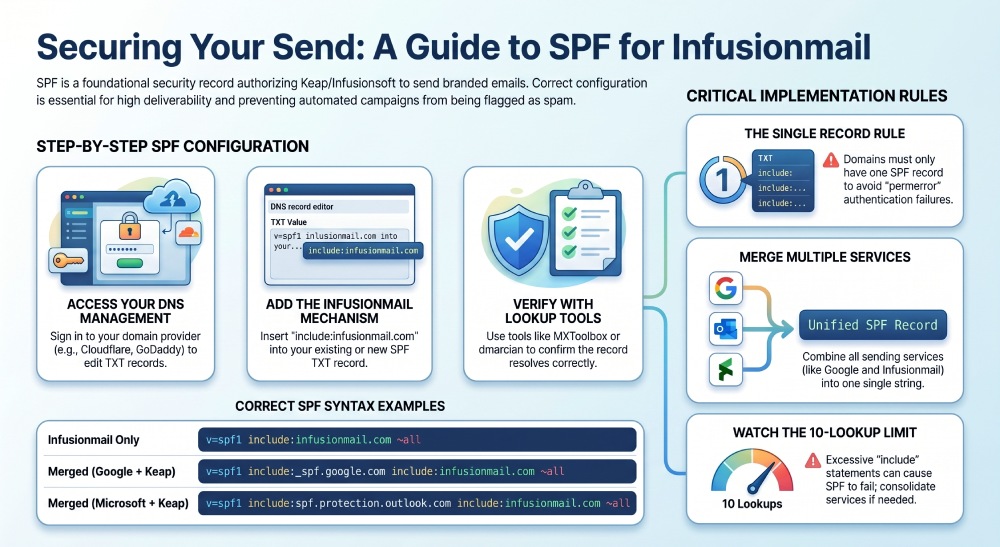
The most common SPF approach is to add an “include” mechanism for the sending platform. For infusionmail, many configurations use an include mechanism similar to:
include:infusionmail.com
However, you should always verify the current value through official Keap or Infusionsoft documentation, your account settings, or user support, because sending infrastructure can change. Check the Keap help center, support forums, or resources such as integration.keap.com if your CRM integration involves third-party tools. If you are still on Max Classic, confirm whether your account setup differs from newer Keap accounts.
A complete SPF record may look like this:
v=spf1 include:infusionmail.com ~all
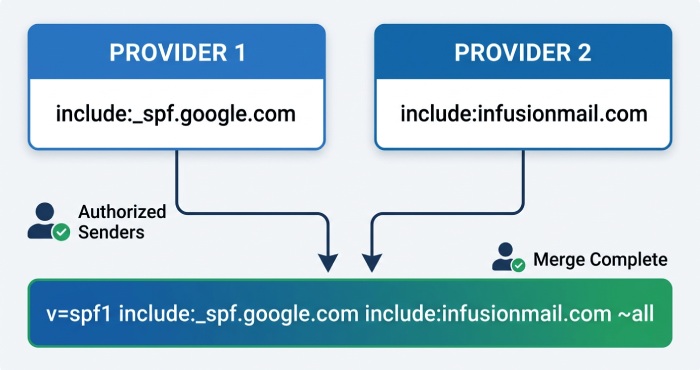
If your domain already sends mail through Google Workspace, Microsoft 365, or another email server, do not create a second SPF record. A domain should have only one SPF TXT record. Instead, merge the mechanisms into one record, for example:
v=spf1 include:_spf.google.com include:infusionmail.com ~all
This is particularly important if your business combines email marketing, CRM follow-up, and offline campaigns. Many teams use Infusionsoft, Keap, or Max Classic for marketing campaigns, while also using direct mail or physical direct mail through services such as Click2Mail, Click2Mail.com, CFH Docmail, docmail, or other third-party print & mail vendors. Those tools may support mail merge, letters, postcards, greeting cards, sales letters, print and mail, on-demand printing, and other mailing services. SPF for infusionmail does not authenticate those physical-mail vendors, but your overall communications stack should be documented so your team understands which platform sends each type of message. See our guide to multiple SPF includes for combining senders in one record.
Some businesses also use InfusedMail, KTS Publishing resources, or educational material from marketers and consultants such as Lois Geller in Forbes, John Borelli, Neha Gupta, Barney Davey, Kristy Karhula, Lyle Lamb, Mihir Dhandha, or David Carriger. Sites such as internetmarketingreview.com and internetmarketingtrainingclub.com have historically discussed Infusionsoft workflows, templates, and marketing operations. Regardless of the source of your training, the SPF mechanism should come from the authoritative provider: Keap, Infusionsoft, or your DNS/email administrator.
Adding or Updating the SPF TXT Record in Your DNS
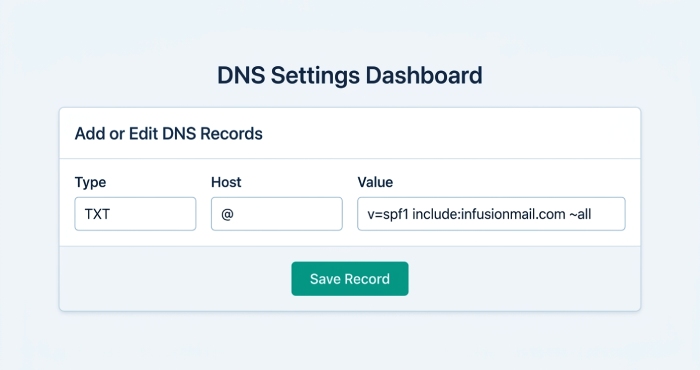
To add SPF for infusionmail, sign in to the DNS host for your sending domain. This may be your registrar, web host, Cloudflare, GoDaddy, Namecheap, or another DNS provider. If you’d rather not hand-edit the syntax, build the record first with our free SPF record generator. Then follow these click-by-click steps:
- Open the DNS management area for your domain.
- Look for an existing TXT record beginning with
v=spf1. - If no SPF record exists, create a new TXT record.
- Set the host/name field to @ for the root domain, unless your DNS provider requires the full domain.
- Add the SPF value, such as
v=spf1 include:infusionmail.com ~all. - If you already have SPF, insert
include:infusionmail.combefore the final mechanism, such as~all,-all, or?all. - Save the record and allow DNS propagation.
If your current SPF record looks like this:
v=spf1 include:_spf.google.com ~all
Update it to:
v=spf1 include:_spf.google.com include:infusionmail.com ~all
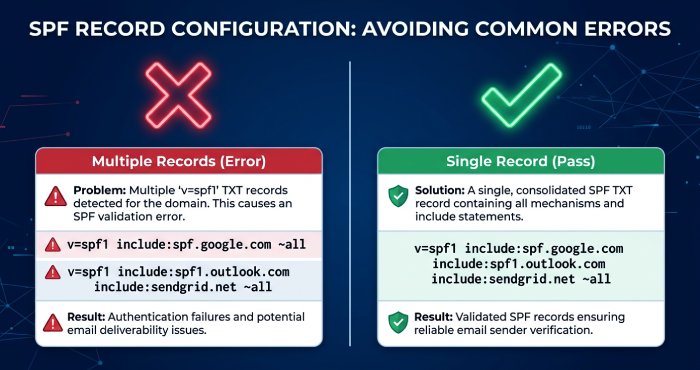
Do not add multiple SPF TXT records. Multiple records can cause SPF permerrors, which may lead to blocking emails, failed authentication, or messages being treated as spam emails. Even a single record can fail by exceeding the SPF lookup limit if it stacks too many includes. This can affect prospects and customers who are expecting an email notification, onboarding message, or follow-up sequence from your Keap campaign builder.
SPF is especially valuable when Keap automation is used as a set-and-forget solution. Automated nurture sequences, abandoned cart reminders, appointment confirmations, and email broadcast campaigns all depend on reliable authentication. When the campaign builder sends an email notification, the receiving server checks whether the sending platform is permitted. If SPF is missing or malformed, even well-written messages using pre-built templates can land in junk folders.
Verifying Your SPF Setup for infusionmail
After saving the DNS record, use an SPF lookup tool to confirm that the record resolves correctly. You can use tools from MXToolbox, dmarcian, AutoSPF, Google Admin Toolbox, or your own DNS command line utilities. Search for your domain’s TXT records and verify that there is only one SPF record and that it includes the infusionmail mechanism.
You should also send a test message from Infusionsoft, Keap, or Max Classic. Test several message types: an email broadcast, a campaign automation email, and an email notification from the campaign builder. Review the message headers in Gmail, Outlook, or another mailbox provider. Look for SPF results such as:
spf=pass
You may also see the return path listed as mailer@infusionmail.com. Again, mailer@infusionmail.com is commonly tied to the Keap/Infusionsoft sending system. What matters is whether SPF passes and whether DMARC alignment is handled appropriately through your broader authentication setup. If the return path shows mailer@infusionmail.com, but SPF passes for the sending infrastructure, that is generally expected behavior for many infusionmail messages.
If you are testing a new account setup, especially after a trial offer, review Keap’s onboarding instructions, video tutorials, or “create my account” setup guidance. Some providers also include authentication information in plan details or pricing pages, though DNS values should still be confirmed through official technical documentation or support.
Troubleshooting Common SPF Issues and Best Practices
If SPF fails for infusionmail, start by checking for duplicate SPF records. A domain must publish only one v=spf1 TXT record. If you find two records, merge them. Next, check syntax. SPF records are space-sensitive, and the final mechanism should appear only once, usually as ~all or -all.
Another common problem is exceeding the SPF 10-DNS-lookup limit. Each include can trigger additional lookups. If you use Keap, Microsoft 365, Google Workspace, a help desk, a billing system, and several integration platforms, your SPF record may become too large. In that case, remove unused services, consolidate sending platforms, or ask your DNS administrator to flatten SPF carefully. A hosted SPF flattening service can automate that safely.
If recipients are still seeing spam emails, check more than SPF. Review DKIM, DMARC, list hygiene, complaint rates, content quality, and sending reputation. If contacts frequently report spam, mailbox providers may throttle or block your campaigns even when SPF passes. Poor list acquisition practices, cold outreach to unqualified prospects, or aggressive cross-sell opportunity messaging can lower response rates and increase filtering.
For Max Classic and older Infusionsoft accounts, confirm that the campaign builder is not sending from an unverified domain or a personal mailbox that conflicts with SPF. Also, review whether the message is an email-broadcast or an automated campaign email, because settings can differ. If you see repeated email bounces, mail blocks, or signs of a blacklist issue such as SORBS-SPAM, pause large sends until authentication and reputation are reviewed.
Finally, document your sending ecosystem. Note which tools send email, which tools handle direct mail, and which vendors manage on-demand printing or mailing services. A business might use Keap for automated follow-up, Infusionsoft for legacy CRM workflows, infusionmail for campaign delivery, and Click2Mail or CFH Docmail for offline letters and postcards. Clear documentation makes future SPF maintenance easier and prevents accidental DNS changes that could disrupt an important email notification, customer sequence, or revenue-generating email broadcast.
General Manager
General Manager of DuoCircle. Product strategy and commercial lead for AutoSPF's 2,000+ customer base.
LinkedIn Profile →