How To Set Up An IONOS SPF Record

Quick Answer
To set up an IONOS SPF record, add or update your domain's SPF TXT record in the IONOS DNS settings with the correct authorized mail servers. A properly configured SPF record helps prevent email spoofing and improves email deliverability.

An SPF record is a DNS-based email authentication rule that tells receiving mail systems which mail server or third-party services are allowed to send email for your domain. SPF stands for Sender Policy Framework, and it is published as a TXT record in your domain’s DNS. When a recipient server receives a message claiming to come from your domain, it performs an SPF check against your DNS record to determine whether the sending IP address is permitted.
For IONOS users, an IONOS SPF setup is important because it helps receiving providers, such as Gmail, gmx.com, and business email filtering server platforms, decide whether your message is legitimate. A correct SPF record improves email deliverability, supports email security, and reduces the risk of email spoofing, where attackers forge your domain in the email header.
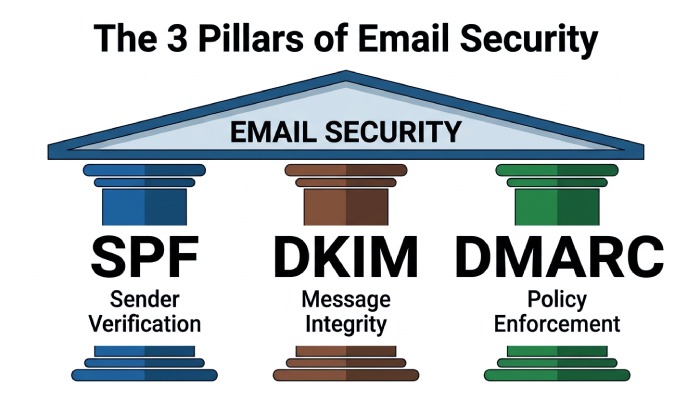
The Sender Policy Framework does not encrypt messages or replace DKIM and DMARC, but it is a foundational part of modern email authentication. DKIM validates message integrity with cryptographic signatures, while DMARC tells receivers how to handle SPF and DKIM failures. Together, SPF, DKIM, and DMARC build email trust, protect your brand, and support spam prevention.
For IONOS mailboxes, the SPF record generally authorizes IONOS mail servers to send on behalf of your domain. If you also use Gmail accounts, CRM platforms, newsletter tools, Facebook, Twitter/X, LinkedIn, or services that route messages through mail channels such as mailchannels.com, your SPF configuration may need to include those authorized servers too.
Before You Start: Information Needed to Create the Correct SPF Record
Before setting up SPF, collect details about every system that sends email using your domain. Your goal is to create a single TXT record containing one SPF value with a complete list of allowed servers. Publishing more than one SPF record for the same domain is a common mistake and can cause email authentication failures. Build a valid record in seconds with our free SPF record generator.
You will need:
- Access to your domain’s DNS settings in IONOS or through an external DNS provider
- The domain name you want to protect
- The sending services you use, such as IONOS, Gmail, email server hosting, marketing tools, or transactional mail systems
- Any required IP address or include statement supplied by your email provider
- Existing TXT records in the domain zone, especially any current SPF entry
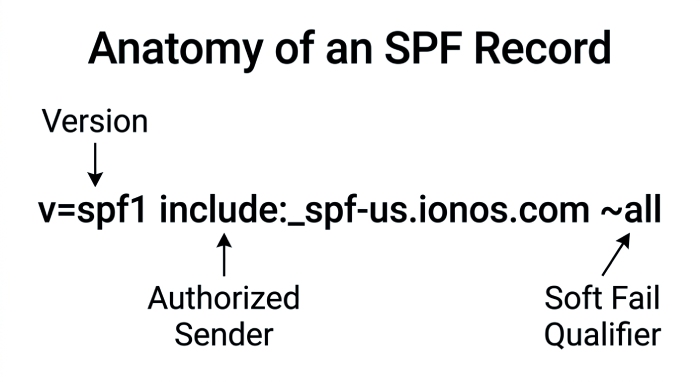
A typical IONOS SPF record uses the SPF version tag v=spf1, followed by authorization mechanisms and an ending qualifier. For example, an IONOS-focused record may use an include statement such as:
v=spf1 include:_spf-us.ionos.com ~allThe v=spf1 part identifies the SPF protocol. The include:_spf-us.ionos.com mechanism tells receiving systems to also trust SPF rules published by IONOS. The ~all qualifier means soft fail, also written as softfail, for senders not listed. A stricter -all qualifier tells receivers to reject or strongly distrust non-authorized mail.
If your domain currently has a missing SPF record, start with the default SPF guidance from IONOS Help Center or IONOS Digital Guide. If you have never published one before, our walkthrough on SPF record setup covers the fundamentals. If you inherited a domain from another domain provider, check whether there is a supplemented DNS record or legacy TXT record that already contains SPF parameters.
Step-by-Step Guide to Adding or Editing an SPF Record in IONOS
Setting up SPF in IONOS means adding or modifying a TXT record in the DNS zone for your domain. The exact interface can change, so consult the IONOS Help Center if labels differ, but the process is usually straightforward.
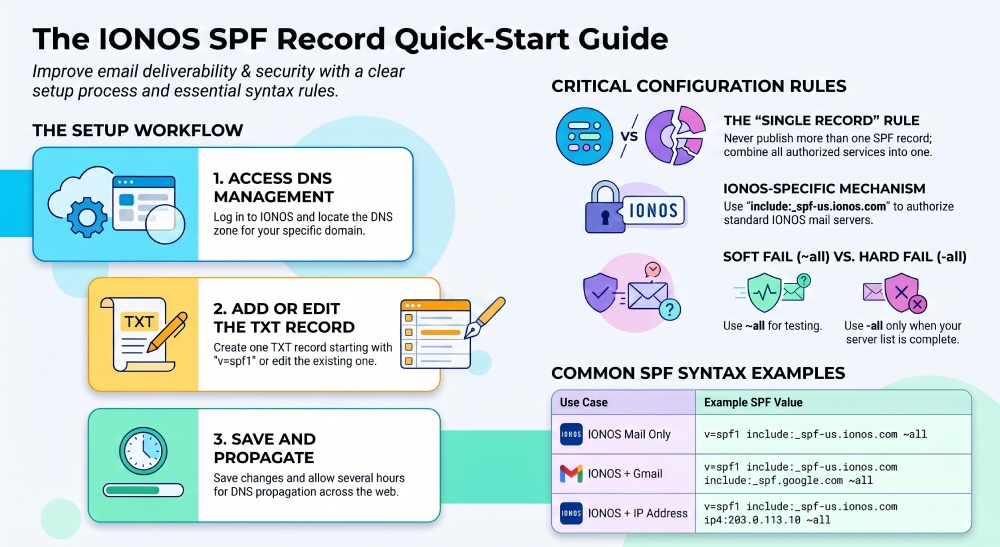
1. Open the IONOS DNS Management Area
Log in to your IONOS account and select the relevant domain. Navigate to the DNS or domain management area, then open the domain zone. This is where DNS record types such as A, MX, CNAME, and TXT are managed.
Look for an existing SPF record. It will usually appear as a TXT record beginning with v=spf1. If you already have an SPF entry, do not create a second one. Instead, choose the option to edit the TXT record and merge your new IONOS SPF settings into the existing value.
2. Add or Update the SPF TXT Record
If no SPF record exists, create a new TXT record. Use @ or leave the host/name field blank if the interface requires that format for the root domain. In the value field, enter the correct SPF value.
For IONOS-only sending, a common IONOS SPF configuration may look like this:
v=spf1 include:_spf-us.ionos.com ~allThis SPF record authorizes IONOS mail servers and instructs receiving systems to produce a soft fail from other sources. If your organization only sends through IONOS and wants a stricter policy, you may eventually choose:
v=spf1 include:_spf-us.ionos.com -allHowever, use the -all qualifier only after confirming that all authorized mail servers are included. A strict SPF implementation can harm email deliverability if a legitimate mail server is omitted.
3. Save the DNS Record and Allow Propagation
After saving the DNS record, allow time for DNS propagation. Changes may appear quickly, but some resolvers can take several hours depending on TTL and caching. During this period, email authentication results may vary.
Important: Use Only One SPF Record
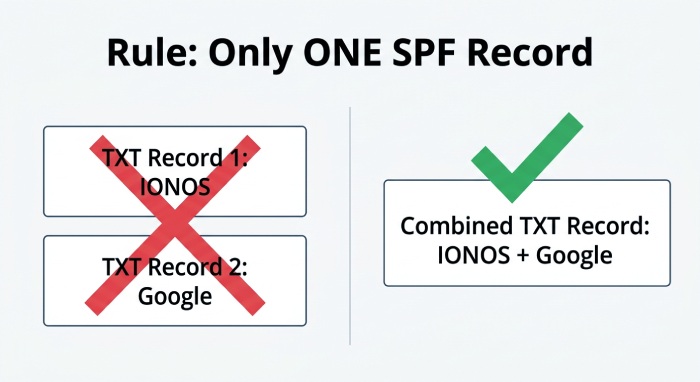
A domain must have only one SPF record. If you need to authorize IONOS plus Gmail, mailchannels.com, or a third-party email filtering server, combine them into one TXT record rather than adding multiple SPF records. Our guide on how to consolidate SPF records walks through merging includes without breaking authentication.
Example Combined SPF Value
v=spf1 include:_spf-us.ionos.com include:_spf.google.com include:relay.mailchannels.net ~allThis SPF value authorizes IONOS, Gmail, and MailChannels in one record. Always verify the exact include statement with each provider before publishing.
Common IONOS SPF Record Examples and Syntax Rules
A clean SPF configuration keeps your email security strong without making the TXT record overly complex. The core syntax begins with the SPF version and ends with an enforcement rule.
Common SPF Examples
For IONOS mail only:
v=spf1 include:_spf-us.ionos.com ~allFor IONOS plus a specific sending IP address:
v=spf1 include:_spf-us.ionos.com ip4:203.0.113.10 ~allFor IONOS plus Gmail accounts:
v=spf1 include:_spf-us.ionos.com include:_spf.google.com ~allFor IONOS plus MailChannels:
v=spf1 include:_spf-us.ionos.com include:relay.mailchannels.net ~allEach include statement expands the authorized servers for your domain. The receiving mail server evaluates those SPF parameters during an SPF check and decides whether the sending server is allowed to verify sender identity for that domain.
Be careful with the 10-DNS-lookup limit in the Sender Policy Framework. Too many include mechanisms can cause SPF permerror results. If your email server hosting stack uses multiple vendors, review all senders and remove unused services. Black Sheep Support and other technical support providers often recommend documenting every mail server and SPF update to avoid accidental breakage later.
Also, remember that SPF validates the envelope sender, not always the visible From address shown in an email client. That is why SPF works best when paired with DKIM and DMARC for complete email authentication.
How to Verify, Troubleshoot, and Maintain Your IONOS SPF Record
After publishing your IONOS SPF record, verify it using independent DNS and email authentication tools. Services such as MX Toolbox can perform an SPF test, inspect your TXT record, and flag syntax issues. You can also query DNS manually or use diagnostic endpoints such as ping.tools.mxtoolbox.com. If using MXToolbox alerts or reports, you may see references such as abuse@mxtoolbox.com in their ecosystem, but your main focus should be the actual SPF result.
Troubleshooting Common SPF Problems
If messages still go to spam, check the following:
- The SPF record starts with v=spf1
- There is only one SPF record for the domain
- The IONOS SPF include statement is typed correctly
- All authorized servers and authorized mail servers are included
- The TXT record was added in the correct domain zone
- The propagation time has passed
- The sending IP address matches a permitted mechanism
- DKIM and DMARC are also configured
A failed SPF check may appear in the email header as fail, softfail, or neutral. A soft fail using ~all usually tells the receiver to accept, but mark the message as suspicious. A hard fail using -all is stricter and can improve email security, but only when your SPF management is mature.
For long-term maintenance, review your SPF record whenever you add or remove a mail server, change email server hosting, migrate to Gmail accounts, use a new email filtering server, or switch your domain provider. The IONOS editorial team, IONOS Digital Guide, and IONOS Help Center are useful references for default SPF and platform-specific updates.
An SPF record is not related to an SSL certificate, website HTTPS, or mailbox passwords, but it is central to email deliverability and email reputation. Maintain the Sender Policy Framework record as part of your broader email security program, alongside DKIM, DMARC, spam prevention controls, and regular DNS record audits.
General Manager
Founder and General Manager of DuoCircle. Product strategy and commercial lead for AutoSPF's 2,000+ customer base.
LinkedIn Profile →