Gsuite SPF Record Configuration For Secure Email Authentication

Quick Answer
Configure your GSuite SPF record correctly to improve email deliverability, prevent spoofing, and strengthen secure email authentication for your domain.
Sender Policy Framework (SPF) is a foundational component of modern email authentication, acting as a frontline defense against email spoofing and phishing campaigns. When integrated with GSuite”now known as Google Workspace”it validates that incoming outgoing email is sent by servers explicitly authorized by your organization. By leveraging DNS TXT records and enforcing SPF authentication, Google Workspace helps receiving servers confirm the legitimacy of each connecting email sender. Proper SPF configuration not only prevents email spoofing but also supports broader spam prevention strategies, strengthens your organizations DKIM and DMARC policies, and maintains a reliable sender reputation.
SPF works by querying the DNS TXT record of the senders domain. This record contains an SPF record string which lists authorized servers through parameters”known as SPF tags”that identify email senders allowed to dispatch messages on behalf of your email domain. SPF validation occurs at the recipients mail server, and failure to pass SPF authentication increases the chances the mail will be marked as spam or outright rejected. For organizations using Google Workspace, establishing a correct SPF record is a critical operational step. Email security helps protect sensitive data from phishing attacks, spam, malware, and unauthorized access.
Why GSuite Domains Need a Proper SPF Record
Incorrect or missing SPF records expose Google Workspace users to a range of issues:
- Increased spam and spoofing: Attackers can forge your domain as the sender, causing receiving servers to mark messages as spam or block them entirely.
- Authentication failures impact bulk senders: For Google Workspace and automatic email services (such as Mailchimp or Amazon SES), SPF authentication is required for bulk senders to ensure proper delivery and avoid blacklists.
- Third-party senders and partners: Many organizations integrate additional platforms”including Salesforce, Microsoft Office 365, Zendesk, or Shopify”which must be individually added to your SPF record to ensure authorized servers are recognized.
- Compliance and trust: SPF, along with DKIM and DMARC, are critical for compliance with industry standards and for instilling trust among clients and partners.
Implementing robust SPF instructions mitigates the risk posed by third-party provider services attempting to use your domain without authorization.
Prerequisites Before Configuring a GSuite SPF Record
Before you set up SPF for Google Workspace, confirm these prerequisites to avoid common configuration errors:
- Domain ownership: You must have control over your domain through a domain host or domain registrar (such as GoDaddy, Namecheap, or Google Domains).
- Access to DNS management: Ensure you can sign in to your domain providers control panel to add or update TXT records.
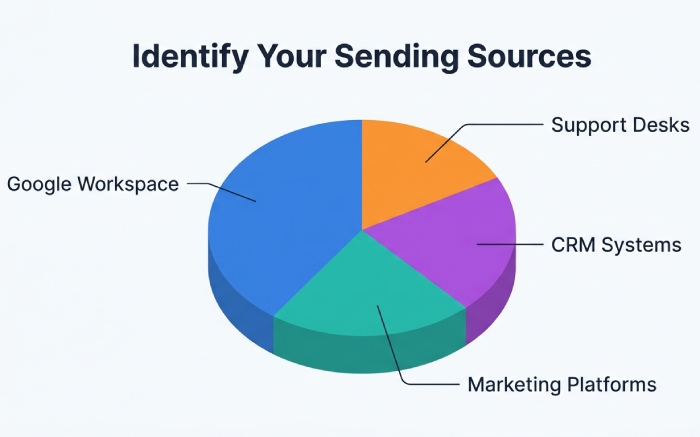
- Identify all authorized servers: List every service that may send mail on behalf of your domain, including Google Workspace, webmail, marketing platforms (Mailchimp, Office 365, salesforce.com), application web servers (Apache, Oracle), on-premise mail servers, and outbound gateways.
- Review existing SPF configuration: Before you update SPF record entries, check for any existing SPF records to avoid SPF record limits or conflicting DNS TXT records.
- Collect required information: Prepare your Google Workspace admin credentials for use with the Google Admin console, and have the relevant SPF record quotes, record value, and SPF syntax ready for implementation.
Keeping track of all service hosts and removing unused IP addresses is best practice to minimize exposure and avoid exceeding SPF record limits.
The Correct SPF Record Syntax for Google Workspace
The standard SPF format for Google Workspace is straightforward, yet critical for proper operation. Familiarity with mechanisms like a, mx, ip4 and include helps when you extend it:
v=spf1 include:_spf.*google*.com ~all
- v=spf1: This mandatory SPF tag signifies the record uses SPF version 1, which is the required standard.
- include:_spf.google.com: This SPF include tag authorizes all Google Workspaces mail servers to send on behalf of your domain. The tag refers to a list of Googles authorized IP addresses, which gets updated automatically as Googles infrastructure evolves.
- ~all: This mechanism indicates a soft fail for any mail sent from a server not listed. Emails failing SPF validation will be marked as suspicious but not always rejected outright.
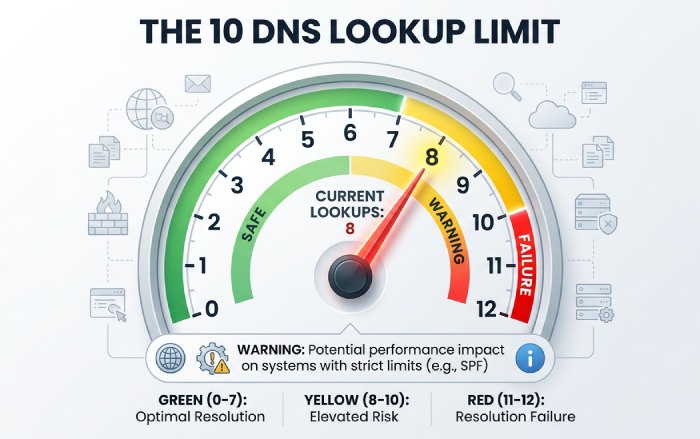
Advanced SPF configuration might require integration with third-party senders such as amazonses.com (Amazon SES), spf.protection.outlook.com (Office 365), mail.zendesk.com (Zendesk), shops.shopify.com (Shopify), spf.salesforce.com (Salesforce), or services like mcsv.net and secureserver.net. Each service provides an SPF record example or explicit SPF instruction for inclusion, e.g., include:*amazonses.com*. For domains handling multiple domains, subdomains, or using custom outbound mailbox providers, add the corresponding SPF tags while keeping the aggregate string within the 255-character limit and under 10 DNS lookups.
If you must authorize additional servers, the resulting SPF record string may resemble:
v=spf1 include:_spf.*google*.com include:*amazonses.com* include:*mailchimp*.com ~all
Always ensure to verify SPF compliance after each update. Build a valid record with our free SPF record generator.
Step-by-Step Guide to Adding the GSuite SPF Record in DNS
Setting up SPF authentication for Google Workspace involves updating your DNS TXT record at your domain host or provider. Follow this precise workflow:
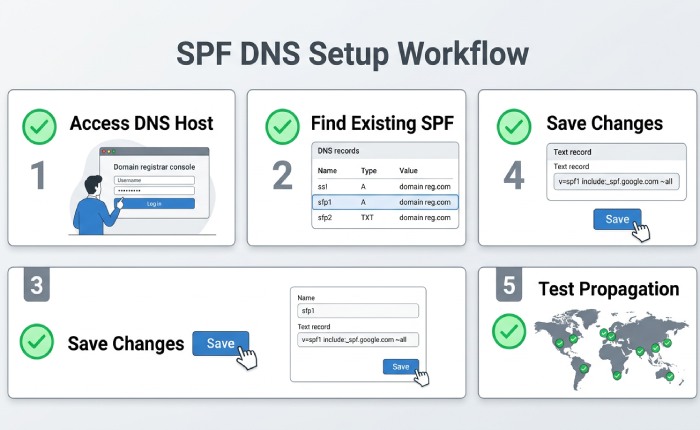
1. Sign in to Your Domain Hosts Admin Dashboard
- Go to your domain providers control panel, such as GoDaddy, Google Domains, Bluehost, or Namecheap. The domain registrar is responsible for hosting your DNS zone file.
2. Access the DNS Management Section
- Look for sections labeled DNS Management, Domain Settings, or Advanced DNS where you can add or update TXT records.
- Select the relevant email domain (the primary domain or applicable subdomains, if using multiple domains with Google Workspace).
3. Locate Existing SPF Records
- Check for pre-existing TXT records containing v=spf1. Only one SPF record per domain is allowed. You can look up your SPF record to see what is already published. If one exists, use SPF help documentation and free tools to update SPF record rather than create a conflicting entry.
4. Add or Edit the SPF DNS TXT Record
Record Specifications:
- Record type: TXT (not MX or CNAME)
- Host/Name field (Host field/Alias): Enter @ for the root domain, or specify a subdomain as needed.
Value (Record value/SPF record string): Enter the recommended SPF format for Google Workspace, e.g.,
v=spf1 include:_spf.*google*.com ~all
- If including third-party senders, extend the SPF string as needed.
- TTL (Time to live): Default or 1 hour (3600 seconds) is sufficient for most use cases.
5. Save and Propagate Changes
- Save your changes. DNS changes can take from several minutes up to 48 hours to propagate globally, depending on your hosting provider and domain registrar.
- Use available free tools, such as Googles CheckMX or MX Toolbox, to verify SPF propagation and confirm SPF authentication working status.
6. Test and Troubleshoot SPF Issues
- Send a test message from your outgoing email address and review the mail headers in Gmail, Outlook, or another email client by checking Authentication Results. Look for SPF results to ensure SPF validation succeeds.
- Troubleshoot SPF issues with SPF help documentation or consult with advanced technical support if messages are marked as spam or if SPF syntax errors appear.
7. Ongoing SPF Maintenance
- Regularly review and update the SPF record as you add or retire authorized servers, integrate new services, or change mail servers. This is especially important for organizations using on-premise mail servers or custom outbound gateways.
- Remove unused IP addresses or retired service hosts to prevent exceeding SPF record limits. Retain documented SPF instructions for compliance and auditing.
By strictly following these SPF configuration steps within the Google Admin console and DNS dashboard of your domain host, you help ensure spam prevention, verify outgoing messages, maintain compliance with bulk sender requirements, and secure both your brand reputation and your users’ inboxes. Always supplement your SPF strategy with DKIM and DMARC for maximum email authentication protection.
General Manager
Founder and General Manager of DuoCircle. Product strategy and commercial lead for AutoSPF's 2,000+ customer base.
LinkedIn Profile →