Email Display Name Spoofing: How It Works and How to Prevent It

Quick Answer
Email display name spoofing occurs when attackers use a trusted name with a fraudulent email address. Prevent it with SPF, DKIM, DMARC, anti-phishing policies, sender verification, security awareness, and out-of-band verification.
What Email Display Name Spoofing Is and Why It Matters
Display name spoofing is an email impersonation technique in which an attacker changes the visible sender name in an email client while using a different underlying email address. For example, a message may appear to come from “Microsoft Support,” “CEO Jane Smith,” or a trusted CFO, even though the actual email address belongs to an attacker-controlled account. This matters because many users—especially on mobile devices—may notice the display name before checking the full email address.
Unlike domain impersonation, where attackers register similar email addresses or lookalike domains such as M1crosoft.com instead of Microsoft.com, display name spoofing often requires no control over the legitimate sender domain. The attacker simply edits the “From” name to create impersonation. That makes display name spoofing common in phishing, spear-phishing, business email compromise, and BEC campaigns.
Strong email security controls are essential because display name spoofing targets human trust rather than only technical weaknesses. A traditional email filter may stop malicious content, spam, or known bad URLs, but many display name spoofing messages contain no malware at all. They rely on social engineering: urgency, authority, secrecy, or fear. This is why display name spoofing is frequently associated with CEO fraud, whaling, and executive impersonation.
The business impact can be severe. The FBI’s IC3 Crime Report has repeatedly identified business email compromise as one of the costliest forms of cybercrime losses. Statista and other industry sources also show that phishing remains a dominant initial attack vector. Whether the target is a CEO, CFO, finance team, HR department, or MSP managing multiple clients, display name spoofing can lead to wire fraud, credential theft, email compromise, and data exposure.
How Display Name Spoofing Works in Real-World Attacks
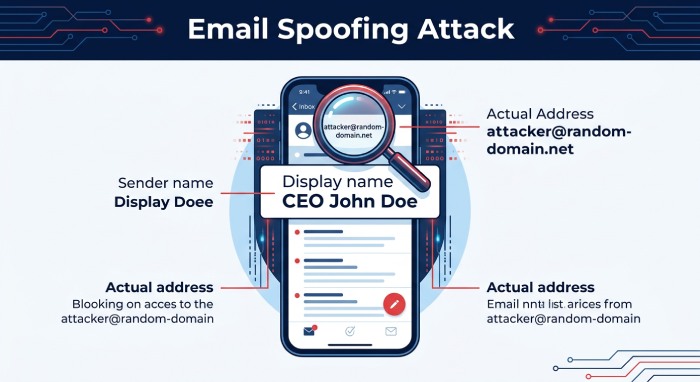 In a typical display name spoofing attack, the threat actor creates or compromises an email account, then sets the sender display name to match a trusted person or brand. The attacker may use a free mailbox, a newly registered domain, or an email address that looks believable at a glance. The sender domain may be unrelated to the organization, but the display name creates the illusion of legitimacy.
From Name Manipulation and Sender Impersonation
Sender impersonation occurs when attackers use a fraudulent email address while displaying a trusted name, such as an IT administrator, finance employee, or company executive. On mobile email clients, the full sender address may be hidden, making these messages harder to recognize. Attackers may also research employees and organizations to create convincing emails involving invoices, payments, projects, or account requests.
SPF, DKIM, and DMARC can help reduce the risk of email spoofing and impersonation. SPF identifies authorized sending servers, DKIM helps verify message authenticity and integrity, and DMARC provides instructions for handling messages that fail authentication. Regularly checking and monitoring these records can help organizations detect unauthorized senders and strengthen email security.
BEC, Spear-Phishing, and Social Engineering Scenarios
Business email compromise (BEC) attacks often begin with a simple message such as, “Are you available?” or “I need you to handle something confidential.” These emails may contain no malicious links, attachments, or obvious warning signs. Instead, attackers build trust through a short conversation before requesting gift cards, payroll changes, wire transfers, financial information, or sensitive documents.
Spear-phishing campaigns may use display name spoofing to impersonate executives, administrators, IT teams, customer support representatives, or other trusted contacts. A message might claim that an email password is expiring, an account requires verification, or an important security update is needed. More sophisticated campaigns combine display name spoofing with domain impersonation, lookalike domains, and similar email addresses to make fraudulent messages appear legitimate.
Common Targets, Warning Signs, and Business Risks
Display name spoofing targets people who can authorize money movement, access credentials, or influence business processes. Finance teams, executives, HR staff, IT admins, legal departments, and MSP help desks are frequent targets. An attacker may impersonate a CEO to commit CEO fraud, a CFO to redirect invoices, or a Microsoft administrator to steal M365 credentials.
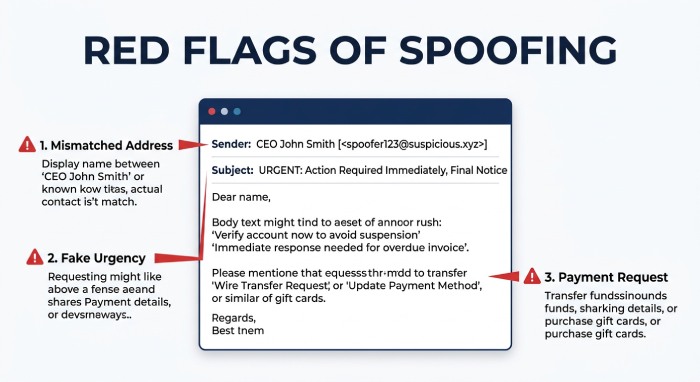 Warning signs include:
-
The display name matches a known person, but the email address is unfamiliar.
-
The sender domain does not match the legitimate organization.
-
The message creates urgency, secrecy, or pressure.
-
The request involves payment, gift cards, payroll, banking changes, or credentials.
-
The tone or timing is unusual for the supposed sender.
-
The email client shows only the display name, especially on mobile devices.
-
The message comes from external senders but appears to represent internal users.
-
Contextual banners or warning banners indicate a first-time sender or external source.
The business risks are broader than one fraudulent payment. Display name spoofing can lead to phishing credential theft, business email compromise, BEC payment fraud, email compromise, data loss, regulatory exposure, and reputational damage. Whaling attacks against executives can expose strategic plans, M&A discussions, legal matters, or board communications. CEO fraud can also disrupt accounting controls and vendor trust.
Security teams should treat display name spoofing as more than a nuisance. It is often an early stage of larger cybercrime operations. Indicators of compromise may include new forwarding rules, suspicious login locations, anomalous email detection alerts, unusual email address changes in vendor records, or unexpected conversations between external senders and finance users.
How to Detect and Investigate Display Name Spoofing Attempts
Detecting display name spoofing requires a combination of identity analysis, content inspection, sender reputation, and behavioral context. Basic authentication controls such as SPF, DKIM, and DMARC are important for email security, but they do not fully prevent display name spoofing because the attacker may not be spoofing the sender domain directly. The email may pass authentication for the attacker’s own domain while still using a deceptive display name.
Technical Detection Signals
Modern email security tools inspect multiple signals to identify display name spoofing and sender impersonation, including the visible display name, sender domain, reply-to address, authentication results, message headers, and historical sender behavior. Organizations can use email authentication and security controls to detect suspicious messages, verify legitimate senders, and reduce the risk of domain and identity impersonation.
Administrators can also configure anti-phishing policies to protect executives, employees, important users, and trusted domains from impersonation attempts. Properly configured SPF, DKIM, and DMARC records provide an additional layer of protection by helping receiving mail servers verify whether messages are authorized to use a domain. Regular monitoring and authentication checks can help organizations identify configuration issues, unauthorized senders, and potential spoofing attempts before they affect users.
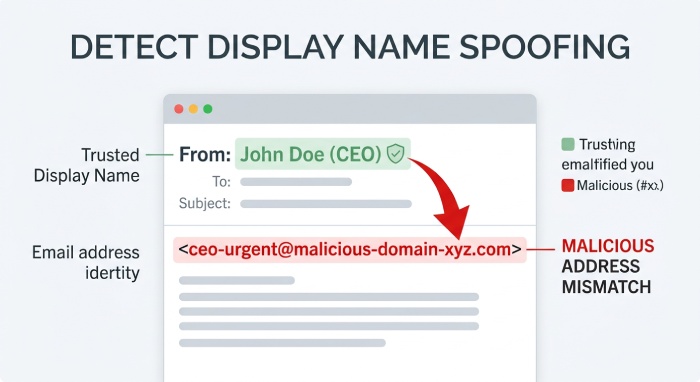 Detection should include:
- Comparing the display name to known internal users.
- Checking whether the email address has communicated with the recipient before.
- Checking the sender’s domain, email address, reputation, and authentication results for signs of impersonation.
- Identifying similar email addresses and domain impersonation attempts.
- Applying advanced content analysis to language, intent, and payment requests.
- Using machine learning and behavioural analysis to identify suspicious messages.
- Correlating threat intelligence with known phishing infrastructure.
Investigation Workflow for Security Teams
When a display name spoofing alert appears, investigators should preserve the message headers and confirm the true email address, reply-to path, sender domain, and authentication results. They should search for related messages across mailboxes, especially those sent to finance, HR, executives, and critical users. Email traffic analysis can reveal whether the same attacker contacted multiple internal users or attempted BEC across departments.
Security teams should also review whether any recipient replied, clicked a link, opened malicious content, or changed payment details. If credentials were entered, treat the case as possible email compromise and inspect the affected email account for forwarding rules, OAuth grants, inbox rules, and suspicious logins. If money was transferred, escalation to legal, banking partners, insurers, and potentially the FBI may be required.
For MSPs, investigation should include tenant-wide searches across managed clients if a campaign is active. Display name spoofing often repeats across industries, and one phishing lure may be reused against multiple organizations.
Best Practices to Prevent Display Name Spoofing
Preventing display name spoofing requires layered email security, clear policies, and employee awareness. No single control can stop every impersonation attempt, especially when attackers use social engineering and clean infrastructure.
Start with authentication and domain governance. Configure SPF, DKIM, and DMARC for legitimate domains, monitor custom domains, and reduce opportunities for domain impersonation. While these controls do not eliminate display name spoofing, they strengthen overall email security and help detect abuse of your sender domain.
Next, enable user impersonation protection in Microsoft Defender for Office 365 or comparable platforms. Protect executives, finance leaders, IT administrators, and other critical users. Configure anti-phish policy settings for sender impersonation, domain impersonation, and mailbox intelligence. Use trusted senders and trusted domains carefully; overusing Trusted Senders or Trusted Domains can weaken protection against display name spoofing if attackers exploit assumed trust.
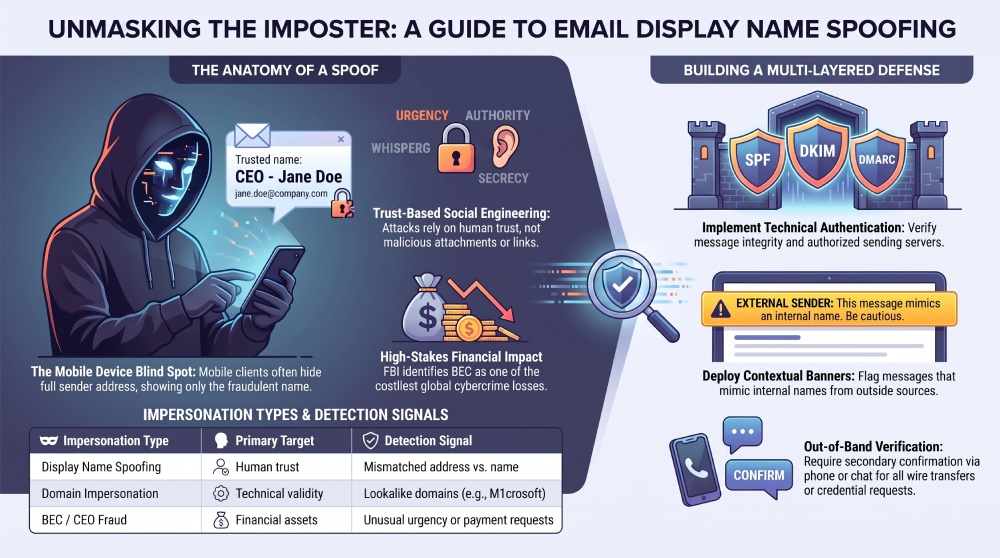 Organizations should also deploy contextual banners and warning banners for external senders, first-time contacts, and messages where the display name resembles an internal user. These banners are especially useful on mobile devices where the full email address may be hidden. For example, a banner that says “This sender is outside your organization” can interrupt CEO fraud, whaling, and spear-phishing attempts before a user responds.
Additional best practices include:
- Require out-of-band verification for payment changes, wire transfers, and sensitive requests.
- Train employees to inspect the full email address, not just the display name.
- Simulate phishing and spear-phishing scenarios involving CEO fraud and BEC.
- Tune email filter policies to detect impersonation without blocking legitimate business.
- Use fraud detection and anomalous email detection for finance workflows.
- Monitor for indicators of compromise after suspicious replies or credential entry.
- Apply machine learning, threat intelligence, and advanced content analysis where available.
- Maintain rapid reporting workflows for suspected display name spoofing.
The strongest protection against display name spoofing combines technology, policy, and culture: authenticated domains, Microsoft Defender for Office 365 or equivalent controls, well-tuned anti-phish policy settings, clear approval processes, and users who understand how impersonation, business email compromise, BEC, whaling, spear-phishing, and CEO fraud actually work.
General Manager
Founder and General Manager of DuoCircle. Product strategy and commercial lead for AutoSPF's 2,000+ customer base.
LinkedIn Profile →