DMARC Verification Failed: Common Causes, Quick Fixes, and Verification Guide

Quick Answer
A DMARC verification failed error means an email did not pass DMARC authentication because SPF or DKIM failed or did not align with the From domain. Check your DNS records, authorize all legitimate senders, enable DKIM, and correct domain alignment to restore delivery.
Try Our Free DMARC Checker
Validate your DMARC policy, check alignment settings, and verify reporting configuration.
Check DMARC Record →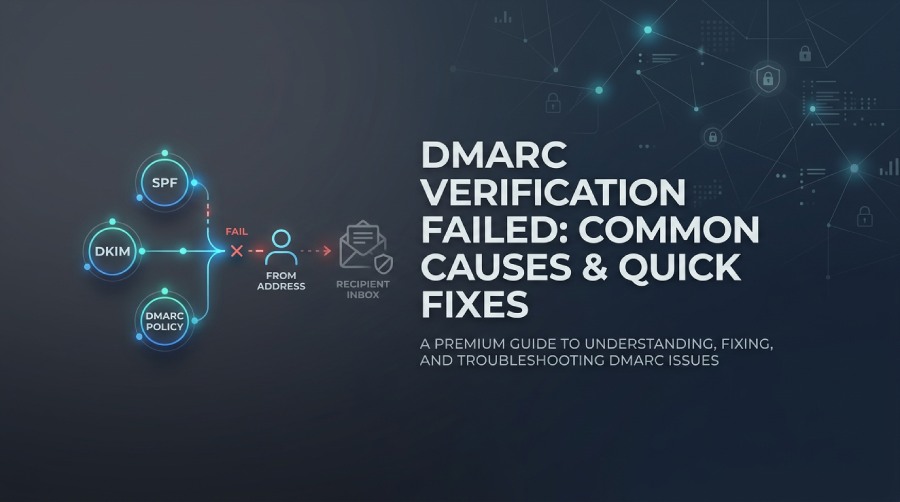
What “DMARC Verification Failed” Means and How DMARC Checks Work
A DMARC verification failed message means the receiving email server could not confirm that the message was legitimately authorized by the domain shown in the “From” address. In practical terms, the message does not pass DMARC because SPF, DKIM, or domain alignment checks failed. When that happens, the recipient’s email provider may allow the message, quarantine it, or mark the email rejected based on the published DMARC policy.
DMARC, short for Domain-based Message Authentication, Reporting, and Conformance, is an email authentication framework designed to reduce email spoofing, email phishing, and impersonation-based phishing attacks. It works alongside SPF and DKIM as an authentication protocol for modern domain authentication.
How DMARC Verification Works
During DMARC verification, the receiving email server performs several security checks:
- It checks whether the sending IP is authorized by SPF.
- It checks whether the message has a valid DKIM signature.
- It checks whether the authenticated SPF or DKIM domain aligns with the visible From domain.
- It applies the domain owner’s DMARC policy, such as
none,quarantine, or a policy of reject.
If the email does not pass DMARC, the recipient’s email provider may trigger blocking emails, mark the email blocked, or generate non-delivery reports showing the message wasn’t delivered. This is why users often describe the issue as email bouncing back, even though the root cause is usually failed email authentication or broken domain authentication.
Common Causes of DMARC Verification Failure
A DMARC failure can happen for several technical reasons. Some are caused by DNS errors, while others come from mail routing, forwarding, misconfigured services, or sending from an unauthorized platform.
SPF Failure or SPF Misalignment
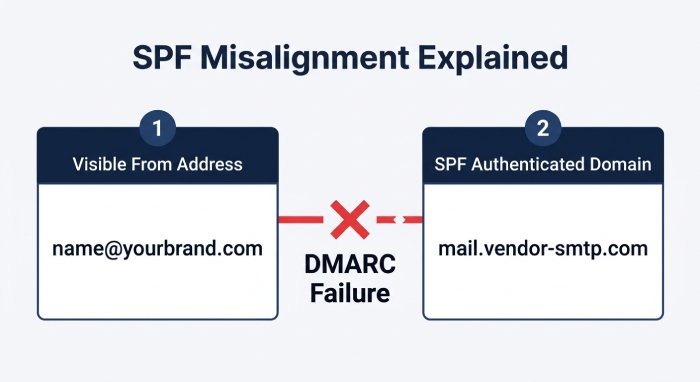 SPF checks whether the sending IP address is authorised to send email on behalf of a domain. If your newsletter tool, CRM, SMTP relay, or cloud service is not authorised in your SPF record, SPF may fail and contribute to a DMARC failure. Even when SPF passes, DMARC can still fail if the SPF-authenticated domain does not align with the domain in the visible From address.
For example, a business email sent through an external SMTP server may authenticate as the vendor’s domain rather than your brand domain. That creates alignment failure and can result in DMARC verification failed, email rejected, or email not delivered errors.
If your SPF record approaches or exceeds the 10-DNS-lookup limit, review your included services and consider SPF flattening to simplify SPF management and avoid SPF lookup errors.
DKIM Failure or Missing DKIM Signature
DKIM adds a cryptographic signature to prove that the message was not altered in transit. A DMARC failure occurs when DKIM is missing, invalid, or signed by a domain that does not align with the From address.
Common DKIM problems include:
- Incorrect selector records
- Missing public key in DNS
- Broken signatures caused by forwarding or mailing lists
- Third-party platforms not configured for your domain
- Old keys remaining after migration to Microsoft 365, Google Workspace, Telstra Mail, or another email provider
DMARC Record Problems
Your DMARC record is published as a DNS TXT record, usually at _dmarc.yourdomain.com. If the TXT value is malformed, missing, duplicated, or placed incorrectly in the DNS zone file, receivers may not complete DMARC verification correctly.
To configure DMARC, you normally work through your domain registrar, DNS host, or managed DNS provider. You may need to add DMARC record entries manually if your email provider does not publish them automatically.
Example DMARC TXT Value
v=DMARC1; p=quarantine; rua=mailto:dmarc-reports@example.com; adkim=s; aspf=sThis DMARC policy tells receivers to quarantine messages that fail authentication and send aggregate reports to the listed mailbox.
Quick Fixes for SPF, DKIM, and Alignment Issues
When DMARC verification failed appears in bounce logs or non-delivery reports, start with SPF, DKIM, and alignment. These quick fixes help you fix DMARC fail conditions before they turn into widespread bounces, rejections, or customer-facing delivery problems.
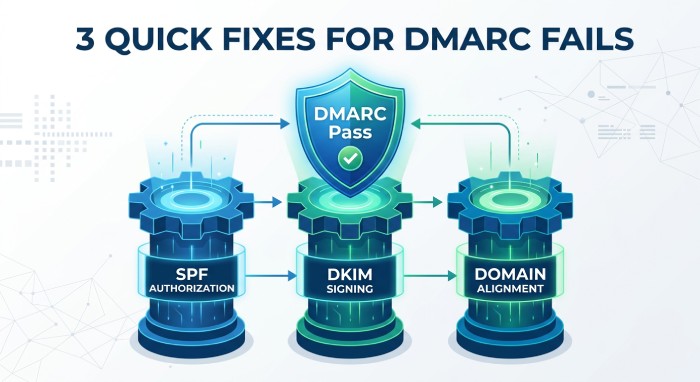
Fix SPF Authorization
Check every system that sends mail for your domain: Microsoft 365, Azure-hosted applications, Dynamics 365, Power Platform workflows, marketing platforms, invoicing systems, helpdesks, and custom applications. Each legitimate sender must be authorized in SPF.
A missing sender can cause email bouncing back, especially when the recipient uses strict filtering. The email may be accepted by one email provider and email rejected by another because different providers apply DMARC rules differently.
Fix DKIM Signing
Enable DKIM through your Microsoft 365 account, ESP, or email platform by configuring the required DNS records and validating them after propagation. DKIM supports reliable email authentication because SPF can fail during forwarding, while DKIM often remains intact. If you use an email client, remember that DMARC issues are typically caused by server-side domain settings, so SPF, DKIM, and DMARC should be properly configured for your sending domain.
Fix Domain Alignment
Alignment is a key part of DMARC authentication. For DMARC to pass, either the SPF-authenticated domain or the DKIM signing domain must align with the domain in the visible From address. With relaxed alignment, the domains can share the same organisational domain; with strict alignment, they must match exactly. If your email fails DMARC, check whether your email provider or third-party service is authenticating or signing the message with a domain that does not align with your From domain.
Step-by-Step DMARC Verification and Troubleshooting Guide
Use this workflow to resolve DMARC issues systematically instead of guessing.
Step 1: Read the Bounce or NDR Details
Start with the bounce message and look for server references or error details. The message may indicate access denied, delivery failure, or that the email does not pass DMARC. These details can help determine whether the issue involves SPF, DKIM, domain alignment, or recipient-side filtering.
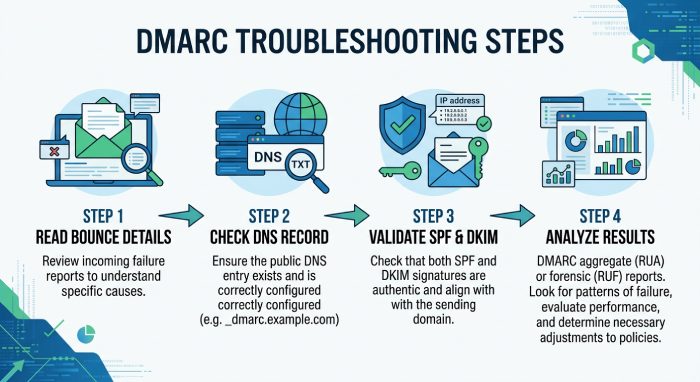
Step 2: Check the DMARC Record in DNS
Use a reputable DNS lookup tool to verify your DMARC record and confirm that it is correctly published.
- The record exists at
_dmarc.domain.com - The syntax starts with
v=DMARC1 - There is only one DMARC TXT record
- The DMARC policy is valid
- Reporting addresses are correct
If no record exists, add DMARC record information through your domain registrar or DNS provider.
Step 3: Validate SPF and DKIM
Check that SPF authorises the correct sending sources and verify the DKIM authentication results in the headers of a delivered test email. Confirm that SPF or DKIM passes and that the authenticated domain aligns with the domain in the visible From address. If SPF fails, check your SPF record for missing authorised senders, syntax errors, multiple SPF records, or excessive DNS lookups — the latter often surfaces as SPF PermError and TempError, which has its own fixes. If DKIM fails, verify the selector, public key, and signing configuration. If any of the terminology here is unfamiliar, our glossary of SPF terms explains each mechanism in plain language.
Step 4: Analyse DMARC Authentication Results
Review the authentication results in the email headers or DMARC reports to identify whether the failure is related to SPF, DKIM, or domain alignment.
Look for results such as:
spf=fail or spf=softfail
dkim=fail
dmarc=fail
SPF or DKIM domain alignment failures
The sending IP address and authenticated domain
If SPF is failing, verify that the sender is authorised in your domain’s SPF record and that the record does not exceed the 10-DNS-lookup limit. If DKIM is failing, check the selector, public key, and signing configuration. For alignment failures, confirm that the authenticated domain aligns with the domain in the visible From address.
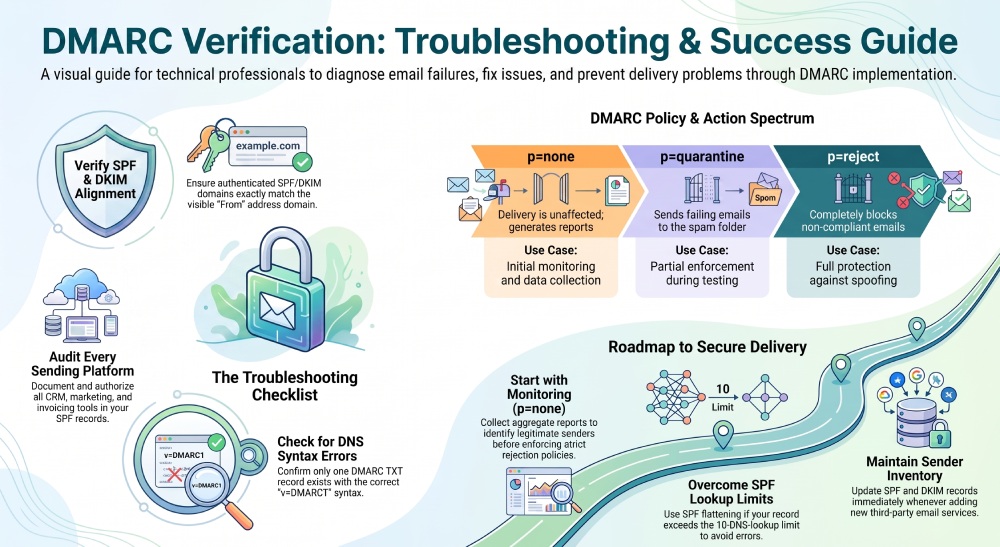
Best Practices to Prevent Future DMARC Failures
Preventing future DMARC failures requires ongoing DNS hygiene, sender inventory, and monitoring. DMARC is not a one-time configuration; it is an ongoing email authentication control that helps protect domains from spoofing and impersonation.
Start with Monitoring Before Rejecting
Begin with a p=none DMARC policy to collect reports. After confirming legitimate senders pass DMARC verification, move gradually to quarantine, then to a policy of reject. Jumping directly to reject can cause legitimate business email to be email rejected or email not delivered.
Maintain an Approved Sender Inventory
Document every platform allowed to send for your domain, including Microsoft 365, marketing systems, CRM tools, support desks, billing platforms, and any custom SMTP server. Whenever a new service is added, update SPF, DKIM, and domain alignment before production sending begins.
This practice reduces DMARC verification failed alerts, prevents email bouncing back, and lowers the risk of attackers exploiting weak domain authentication to conduct email spoofing.
Monitor Reports and Tighten Authentication
Review aggregate DMARC reports regularly. Look for unauthorized sources, failing IPs, misaligned DKIM signatures, and unusual sending patterns. If a legitimate sender does not pass DMARC, fix it quickly before the recipient’s email provider starts blocking emails or treating your mail as suspicious.
Strong DMARC, SPF, and DKIM controls help protect users from email spoofing, reduce email phishing, and ensure legitimate communication reaches inboxes instead of generating bounces, rejections, or support tickets.
General Manager
General Manager of DuoCircle. Product strategy and commercial lead for AutoSPF's 2,000+ customer base.
LinkedIn Profile →