DMARC Deployment Phases: How to Prepare for a Smooth DMARC Rollout

Quick Answer
DMARC deployment is a phased process that starts with identifying all email senders, configuring SPF and DKIM, publishing a p=none policy for monitoring, analyzing DMARC reports, fixing authentication issues, and gradually enforcing quarantine and reject policies to prevent spoofing.
Try Our Free DMARC Checker
Validate your DMARC policy, check alignment settings, and verify reporting configuration.
Check DMARC Record →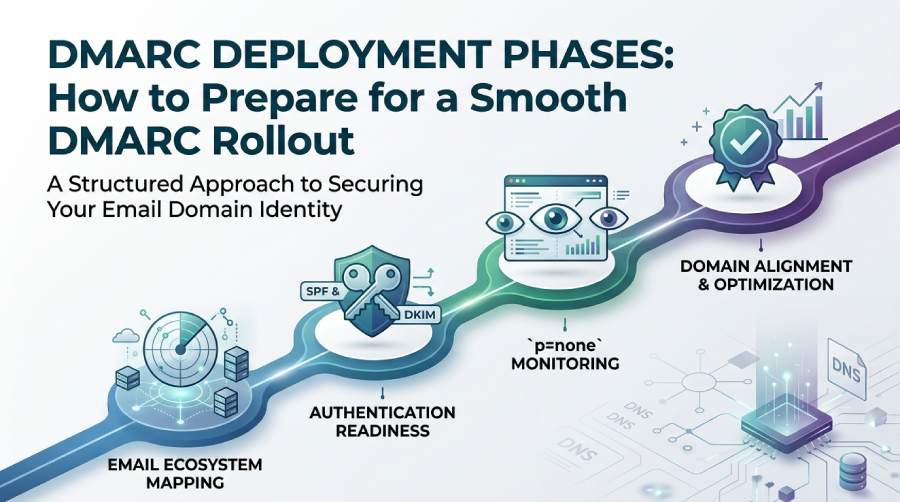
Phase 1: Assess Your Email Ecosystem and Identify All Sending Sources
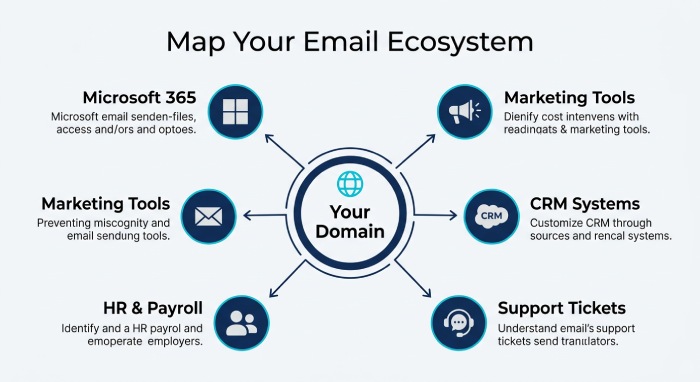
A successful DMARC deployment starts long before you publish a DMARC TXT record. The first phase is discovery: identifying every system that sends outbound mail using your domain, including Microsoft 365, marketing automation platforms, CRM tools, ticketing systems, payroll vendors, ecommerce platforms, and internal SMTP applications.
DMARC—Domain-based Message Authentication, Reporting, and Conformance—depends on accurate visibility. If you miss a sender, that system may fail email authentication once your DMARC policy becomes stricter. This can affect email delivery, generate a non-delivery report, or cause legitimate messages to be routed to spam.
Map Your Domains, Subdomains, and Sending Services
Start by building an inventory of custom domains, subdomains, parked domains, and any umbrella domain used across the organization. For example, a company using contoso.com may also send mail from news.contoso.com, billing.contoso.com, and an onmicrosoft.com domain associated with Microsoft 365.
Document:
- The visible From address used in email campaigns
- The MAIL FROM address or envelope sender used by each platform
- Whether the service supports SPF, DKIM, and domain alignment
- Which DNS hosting service or domain registrar manages the DNS configuration
- Whether messages are sent as inbound mail relays, outbound mail, or automated transactional mail
This inventory helps prevent authentication gaps and reduces the risk of email spoofing, business email compromise, and phishing attacks.
Check Microsoft 365 and Third-Party Senders
For Microsoft 365 environments, review accepted domains in the Microsoft 365 admin center at admin.microsoft.com, and confirm whether each domain is configured for DKIM signing. Microsoft Defender for Office 365, the Defender portal, and PowerShell can help administrators review email authentication behavior, message headers, and spoof intelligence.
A disciplined DMARC deployment also improves email security by ensuring only authorized senders can use your domain identity. Microsoft Corporation guidance, DMARC.org documentation, RFC 7489, and M3AAWG recommendations all emphasize that organizations should validate every sender before moving to enforcement.
Phase 2: Set Up SPF and DKIM Before Publishing a DMARC Record
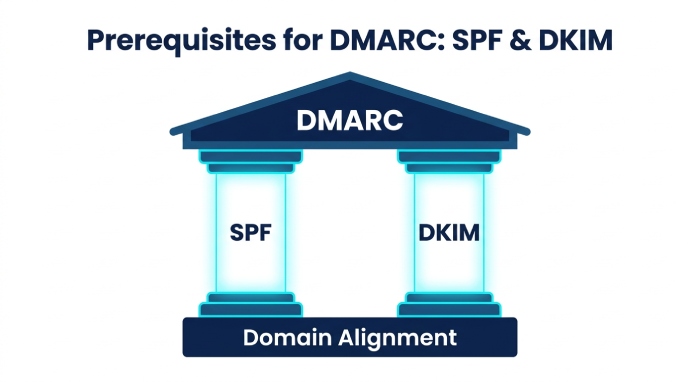
Before publishing a DMARC record, you need SPF and DKIM working correctly. DMARC validation relies on these email authentication mechanisms and checks whether they pass with domain alignment. A message can technically pass SPF or DKIM but still fail DMARC if the authenticated domain does not align with the From address domain. Take time understanding SPF alignment before publishing DMARC.
Configure SPF Correctly
SPF authorizes sending servers through an SPF record published as a DNS TXT record. For example, a basic Microsoft 365 SPF record may include Microsoft’s sending infrastructure. Third-party platforms may require additional includes.
Your SPF TXT record should be carefully managed because SPF has DNS lookup limits. Too many nested includes can cause SPF failure, which can break DMARC validation. Separating myths about SPF flattening from facts helps you keep records under the lookup limit. Review the MAIL FROM address, MailFrom domain, and envelope sender used by each service to determine whether SPF aligns with the visible From address.
Avoid SPF Overload
Do not add every vendor blindly. Each SPF mechanism affects DNS configuration and may contribute to lookup complexity. Use automation where appropriate, but verify that every SPF record is accurate, current, and authorized.
Using an SPF management platform like AutoSPF can help organizations maintain accurate SPF records, reduce DNS lookup issues, simplify ongoing email authentication management, and keep SPF configurations up to date as new email services are added or existing ones change.
Enable DKIM Signing
DKIM uses cryptographic signatures to prove that a message was authorized by the sending domain and not altered in transit. In Microsoft 365, DKIM signing can be enabled through the Microsoft 365 admin center or PowerShell. Third-party platforms often require you to publish one or more selector-based TXT record entries in DNS. You can create a signing key with our free DKIM generator.
DKIM is especially important for DMARC deployment because DKIM survives many forwarding scenarios better than SPF. It also strengthens domain alignment when the DKIM d= domain matches the From address domain or an aligned organizational domain.
Verify DNS Configuration for DKIM
Work with your domain registrar or DNS hosting service to publish the required DKIM TXT value. Then test the selector to confirm that the TXT record resolves correctly. Incorrect DNS configuration is one of the most common causes of DKIM failure, failed DMARC validation, and poor email delivery.
Phase 3: Start with a DMARC Policy of p=none for Monitoring and Reporting
Once SPF and DKIM are operating, publish a DMARC TXT record using a none policy. This allows you to monitor authentication results without affecting message delivery. In DMARC syntax, the record is typically published at the dmarc hostname, such as dmarc.contoso.com.
A basic monitoring record might look like this:
v=DMARC1; p=none; rua=mailto:rua@contoso.com; ruf=mailto:ruf@contoso.com; fo=1This TXT value tells receivers to send aggregate reports to the rua report URI and forensic reports to the ruf address where supported.
Use p=none for Safe Policy Testing
The none policy is not enforcement; it is visibility. During this phase of DMARC deployment, your DMARC policy gathers data from mailbox providers, security gateways, and participating receivers. The aggregate reports are usually delivered in XML format, often compressed with GZIP.
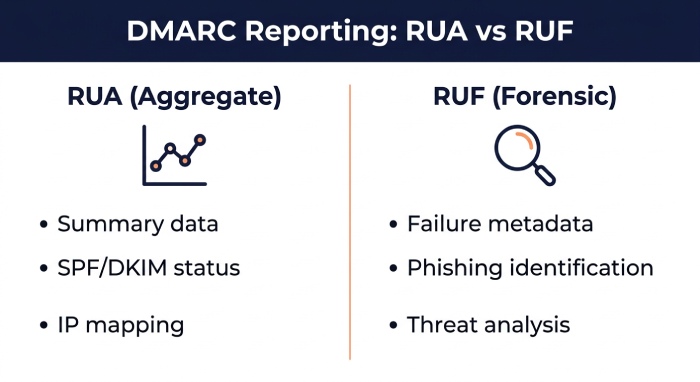
Aggregate reports show which IP addresses and services are sending mail for your domain, whether SPF and DKIM passed, and whether domain alignment succeeded. Forensic reports, sometimes called a failure report, may include samples or metadata about individual authentication failures, though many providers limit forensic reports for privacy reasons.
Understand rua and ruf Reporting
The rua tag is used for aggregate reports, while the ruf tag is used for forensic reports. Not every receiver sends forensic reports, but when available, they can help identify phishing attacks, misconfigured vendors, or unauthorized systems abusing your domain.
Phase 4: Analyze DMARC Reports, Fix Authentication Failures, and Align Domains
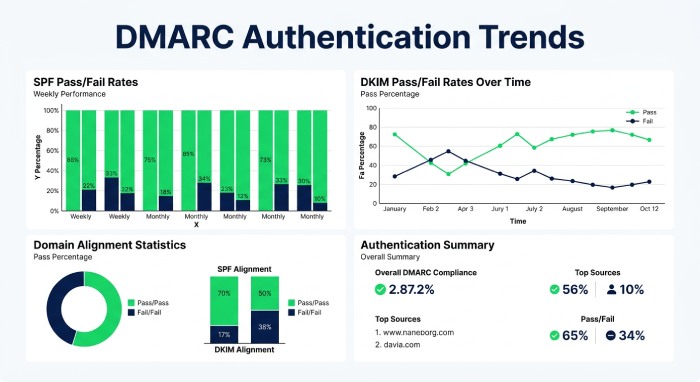
DMARC reporting is where the rollout becomes operational. Aggregate reports and forensic reports are valuable only if you review them consistently. Many organizations use dashboards, automation, or Microsoft Power BI to normalize XML data, identify sending patterns, and prioritize fixes.
Interpret Aggregate Reports
Aggregate reports help answer critical DMARC deployment questions:
- Which systems are sending outbound mail for the domain?
- Are SPF and DKIM passing?
- Is domain alignment working?
- Are there unknown sources that may indicate email spoofing?
- Are legitimate services failing authentication?
Tools such as Microsoft Power BI or a specialized reporting platform can convert raw XML into actionable charts. Power BI dashboards can highlight authentication trends by source IP, sender domain, and DMARC policy result.
Fix Domain Alignment Problems
Domain alignment is central to DMARC. SPF alignment requires the MAIL FROM address domain to align with the From address domain. DKIM alignment requires the DKIM signing domain to align with the From address domain.
For example, if a vendor sends as billing@contoso.com but signs with vendor-mail.com, DKIM may pass but fail DMARC domain alignment. Similarly, SPF may pass for the vendor’s envelope sender while failing alignment with contoso.com.
Investigate Forwarding and ARC
Forwarding can cause SPF failures because the forwarding server may not be authorized in the original domain’s SPF record. DKIM often survives forwarding, but mailing lists and gateways can modify content. ARC, or Authenticated Received Chain, can help preserve authentication context. In Microsoft ecosystems, an ARC sealer may be relevant for trusted intermediaries and inbound mail evaluation.
Microsoft Defender for Office 365, the Defender portal, and Microsoft Intelligent Security Association partners—also known as MISA, the Microsoft Intelligent Security Association—can support deeper email protection workflows.
Phase 5: Gradually Enforce DMARC with Quarantine and Reject Policies
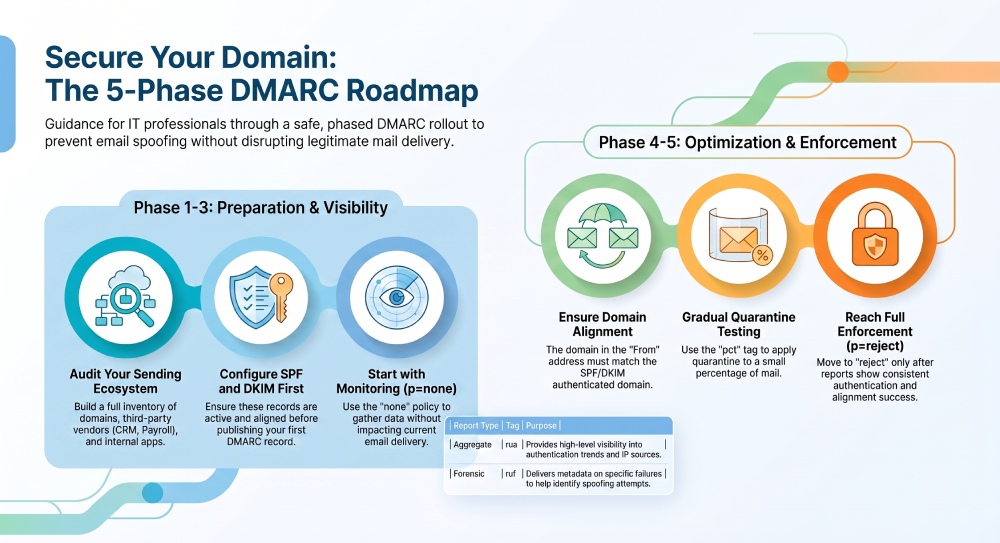
After monitoring and remediation, move from p=none to enforcement. Enforcement should be gradual. A rushed DMARC deployment can block legitimate mail if SPF, DKIM, or domain alignment issues remain unresolved.
Move to Quarantine First
A quarantine DMARC policy instructs receivers to treat failing messages as suspicious, often placing them in spam or junk folders. You can use the pct value to apply enforcement to only a percentage of mail:
v=DMARC1; p=quarantine; pct=25; rua=mailto:rua@contoso.com; ruf=mailto:ruf@contoso.comThis policy testing approach lets you observe impact while maintaining control. Continue reviewing aggregate reports and forensic reports to ensure legitimate senders are not failing DMARC validation.
Advance to a Reject Policy
Once your aggregate reports show consistent SPF, DKIM, and domain alignment success, you can move to a reject policy:
v=DMARC1; p=reject; rua=mailto:rua@contoso.com; ruf=mailto:ruf@contoso.comA reject policy tells participating receivers to refuse unauthenticated mail that fails DMARC. This is the strongest DMARC policy and provides the best protection against domain impersonation, business email compromise, and phishing attacks.
Be aware that in Microsoft 365, unauthenticated outbound mail may be routed through the High-risk delivery pool under certain conditions to protect Microsoft’s service reputation. Maintaining accurate DNS configuration, valid TXT record entries, proper DKIM signing, and aligned SPF helps protect both email reputation and email delivery.
For subdomains and parked domains, publish explicit DMARC records or use organizational-domain policy inheritance carefully. An umbrella domain strategy should define how every domain, including inactive domains, handles DMARC deployment, aggregate reports, forensic reports, SPF, DKIM, and domain alignment.
General Manager
Founder and General Manager of DuoCircle. Product strategy and commercial lead for AutoSPF's 2,000+ customer base.
LinkedIn Profile →