Complete Guide To Setting Up SPF For Ontramail

Quick Answer
To set up SPF for Ontramail, add the correct SPF record to your domain’s DNS settings. This authorizes Ontramail to send emails on your behalf, improving email deliverability and protecting your domain from spoofing and phishing attacks.
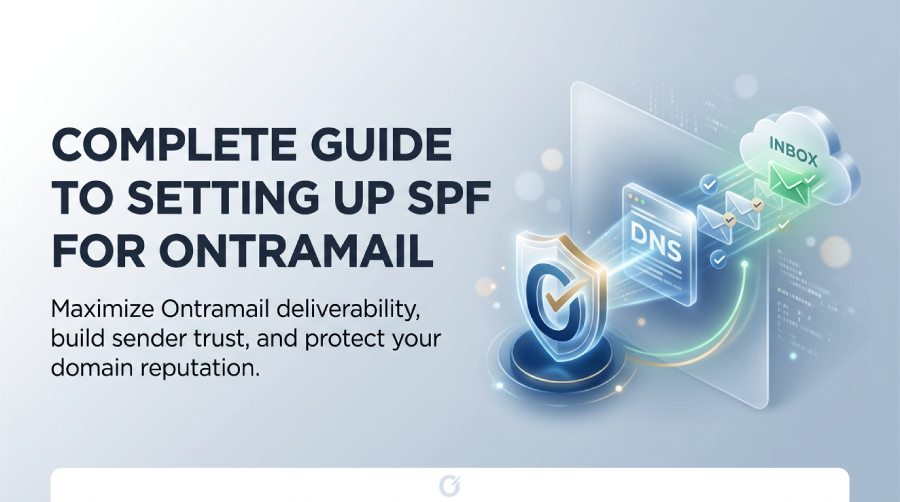
Sender Policy Framework, or SPF, is an email authentication method that tells receiving mail servers which systems are authorized to send email for your domain; if any of these terms are unfamiliar, our SPF terms glossary explains them. When you use Ontramail for email marketing automation, SPF helps mailbox providers, such as Google, confirm that Ontramail is authorized to send messages on your behalf.
In simple terms, SPF works like a security verification layer for email. If someone tries to send from your domain using an unauthorized server, the receiving system can detect the mismatch. This helps protect your brand from spoofing, phishing, and malicious bots attempting to impersonate your business.
For Ontramail users, SPF is especially important because email marketing automation depends on trust. Campaigns, broadcasts, TriggerMail workflows, Ontraport sequences, and automated follow-ups all rely on consistent inbox placement. Without proper SPF, your messages may be filtered, quarantined, or rejected entirely.
Think of SPF like the signin process on a secure website. When you sign in to YouTube, Quora, or another tech service, the platform may ask for security verification or CAPTCHA to protect accounts against bots. Email providers use SPF similarly: they verify that a sending server is legitimate before accepting the message. Just as malicious bots can attack a sign-in page, unauthorized senders can abuse domains without proper authentication.
SPF does not replace DKIM or DMARC, but it is a foundational record. For OntraMail and Ontramail campaigns, SPF supports sender reputation, helps prevent spoofing, and improves the likelihood that email marketing messages reach subscribers instead of spam folders. If your record grows too large, our SPF flattening tool keeps you safely under the lookup limit.
Prerequisites: Domain Access, DNS Provider, and Ontramail Sending Details
Before creating or updating your SPF record for Ontramail, gather the required access and configuration info. The process usually takes only a few minutes, but you need the correct details before making changes.
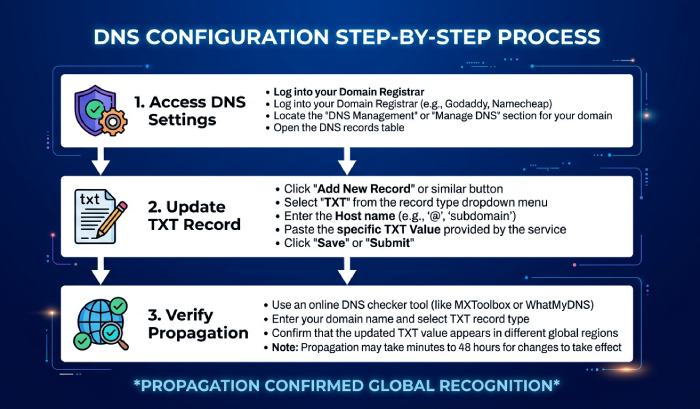
You will need:
- Access to your domain registrar or DNS hosting provider
- The domain or subdomain you use for Ontramail sending
- The current SPF TXT record, if one already exists
- The official Ontramail sending details or SPF include value from Ontramail support documentation
- Permission to edit DNS records
- A way to test and confirm the record after publishing
Your DNS provider may be Google Domains, Cloudflare, GoDaddy, Namecheap, or another website hosting or DNS service. Sign in to the DNS dashboard from a trusted computer or device. If your account uses sign-in protection, complete any CAPTCHA, security verification, or authorization prompt before editing records.
Do not rush through DNS changes. If your session says you are signed out, sign in again rather than relying on a stale page. If a “just a moment” screen appears while performing verification, wait for the security service to complete its check. These protections exist to protect DNS accounts against bots and malicious bots that target domain settings.
If you are unsure which sending domain Ontramail uses, check your Ontramail account settings. Some platforms use a root domain, while others recommend a dedicated subdomain. This is common across email marketing automation tools, including OntraMail, TriggerMail, and other email marketing systems.
You may also find discussions on Quora or comparison platforms such as 6sense, but always rely on Ontramail’s official documentation for the final SPF value. A Quora answer can be a useful background, but outdated email authentication info can create deliverability problems.
How to Create or Update Your SPF DNS Record for Ontramail
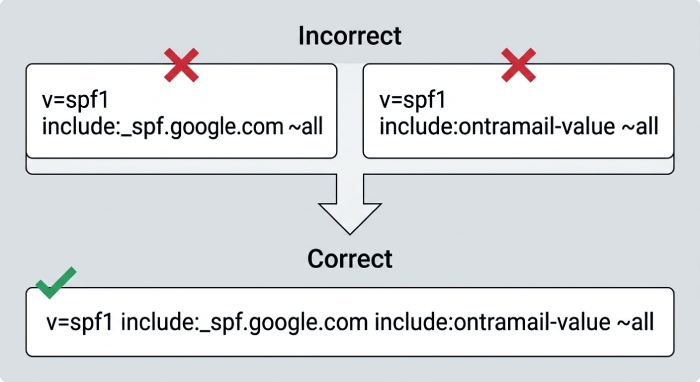
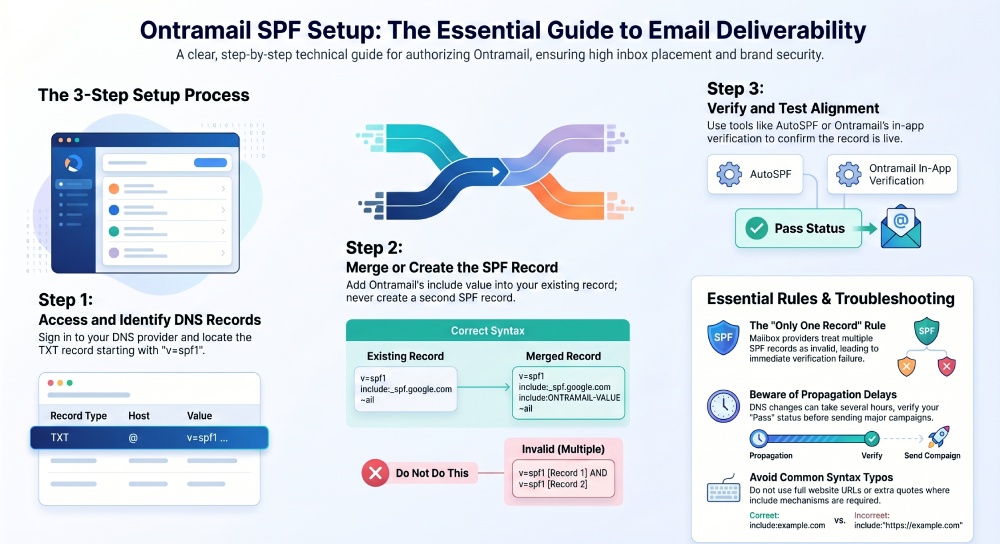
SPF is published as a TXT record in your domain’s DNS zone. The most important rule is that a domain should have only one SPF record. If you already have an SPF record, you must update it rather than create a second one. Build a valid record in seconds with our free SPF record generator.
A typical SPF record looks like this:
v=spf1 include:example-sending-*service*.com ~allFor Ontramail, you should replace the example include mechanism with the SPF include value provided by Ontramail or OntraMail documentation. The structure may vary depending on your account, sending setup, or whether you are using Ontraport-related infrastructure.
If your domain already sends mail through another service, such as Google Workspace, your SPF record may look similar to this:
v=spf1 include:_spf.*google*.com ~allTo authorize Ontramail as well, you would merge the Ontramail include into the same SPF record:
v=spf1 include:_spf.*google*.com include:*ONTRAMAIL*-SPF-VALUE ~allUse the actual Ontramail value supplied by the platform. Do not copy a random link from a forum, Quora thread, YouTube video description, or old playlist tutorial unless you confirm it against official documentation.
Recommended SPF Update Process
- Sign in to your DNS provider.
- Search for your domain’s DNS settings.
- Find the existing TXT record that starts with v=spf1.
- If no SPF record exists, create a new TXT record.
- If an SPF record already exists, add the Ontramail include mechanism to the same record.
- Save the change.
- Wait for DNS propagation.
- Test verification using SPF lookup tools.
Be careful not to cancel or navigate Back while saving. DNS interfaces sometimes display warnings, loading messages, or an error occurred notice if the page fails to update. If that happens, restart the browser session, sign in again, and confirm whether the record was saved.
SPF syntax is strict. Avoid extra quotation marks unless your DNS provider adds them automatically. Do not insert a URL, copy link, or full website address where an SPF include value is required. SPF records use mechanisms like include:, ip4:, ip6:, a, mx, and qualifiers such as ~all or -all. Stacking too many lookup-triggering mechanisms can cause a PermError from too many lookups.
Many marketers learn DNS from YouTube videos. That can be helpful if you want to watch a walkthrough, pause playback, or save a playlist to your favorites. However, YouTube interfaces may show messages like “retrieving sharing information,” “tap to unmute,” or TV recommendations that distract from the technical details. Use videos for learning, but use Ontramail’s official info for configuration.
Testing and Verifying Your Ontramail SPF Setup
After saving your SPF record, testing is essential. DNS changes may go live quickly or take several hours, depending on the provider and TTL settings. Verification confirms that Ontramail is authorized and that your record is valid.
Use an SPF checker or DNS lookup tool such as AutoSPF to search your domain. Enter the sending domain, not necessarily your main website URL. The tool should return a TXT record beginning with:
v=spf1Then confirm that the Ontramail include value appears in the record. If the record is missing, wait and test again later. If multiple SPF records appear, you need to merge them into one.
Ontramail may also provide in-app verification. Sign in to your Ontramail account, go to the domain authentication page, and look for SPF status. If the system says verification is pending, wait for propagation. If it says forbidden, failed, or error, compare the published DNS record against the exact required value.
This process is similar to account security verification on YouTube or Quora. When you sign in from a new device, those platforms may use CAPTCHA to protect accounts from malicious bots. Ontramail verification protects email trust by confirming that your DNS settings authorize the service to send mail for your domain.
If you manage marketing from multiple devices, such as a computer during work and a mobile device after hours, make sure only authorized admins can edit DNS. Domain authentication is not a casual shopping preference or watch history setting; it directly affects deliverability and brand security.
For best results, send a test campaign after verification passes. Check the message headers to confirm SPF alignment. You can also send to a Gmail test inbox and inspect “Show original” to verify SPF results. Look for a pass result associated with your Ontramail sending domain.
Common SPF Setup Mistakes and Troubleshooting Tips
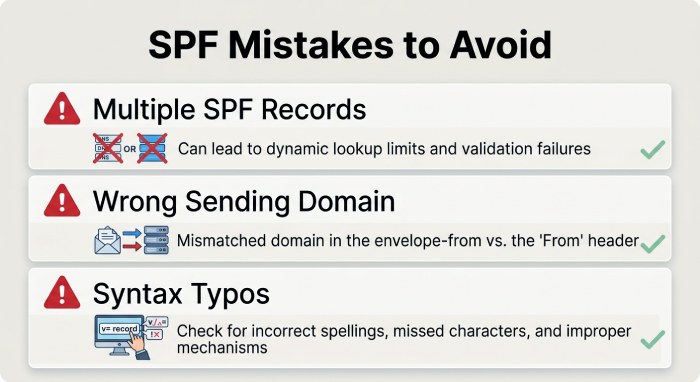
One of the most common mistakes is publishing more than one SPF record. Mailbox providers may treat multiple SPF records as invalid, which can cause verification failure. Always combine services into a single SPF TXT record.
Another frequent mistake is using the wrong domain. If Ontramail asks you to authenticate mail.example.com, do not add the SPF record only to example.com unless instructed. DNS records are location-specific.
Watch for these common issues:
- Multiple SPF records exist for the same domain
- The Ontramail include value that is misspelled
- The record was added as the wrong DNS type
- The SPF record contains a website URL instead of an include mechanism
- DNS propagation has not completed
- The DNS provider automatically changed formatting
- The record exceeds SPF lookup limits
- You are checking the wrong domain or subdomain
- You forgot to save changes before leaving the page
If an error occurred while saving, go back to your DNS dashboard and confirm the value. If you were signed out during the process, sign in again and review the history or audit log if your provider offers one. Some DNS platforms provide change history, which can help identify whether the update was saved or overwritten.
If your DNS provider displays a CAPTCHA or security verification screen, complete it carefully. These systems protect domain accounts against bots, malicious bots, and automated abuse. A security service may temporarily block access if it detects unusual behavior, especially after repeated signin attempts.
Do not assume a YouTube tutorial, Quora post, or shared link has the latest Ontramail settings. Quora discussions can be useful, and YouTube videos can help you understand the process, but SPF values can change. If a creator tells viewers to share, copy the link, or follow a playlist, still verify the technical details with Ontramail. A Live demo or saved playback may be outdated by the time you watch it.
If Ontramail verification continues to fail, collect the following info before contacting support:
- Your sending domain
- The full SPF TXT record
- Your DNS provider
- A screenshot of the DNS page
- The exact Ontramail error message
- The time the record was updated
- Any related automation or email marketing settings
SPF is only one part of deliverability. To fully protect your Ontramail email marketing automation, also configure DKIM and DMARC, where supported. Together, these authentication methods help mailbox providers confirm legitimate sending, reduce abuse from malicious bots, and protect your domain reputation across inboxes.
General Manager
General Manager of DuoCircle. Product strategy and commercial lead for AutoSPF's 2,000+ customer base.
LinkedIn Profile →